


Are you looking for an easy way to add a WordPress Coupon Code Field to your website? By adding a coupon code field in your forms, you can offer discounts to your customers and increase sales during slow periods. In this article, we will show you how to easily add a WordPress Coupon Code Field to your website.
Why Add a WordPress Coupon Code Field in Your Form?
Adding a coupon code field to forms on your WordPress website can encourage users to buy from you. For example, if you have an order form for your restaurant, then adding a coupon code for discounts can help attract new customers and encourage repeat purchases. You can also use coupons to promote clearance sales or new products in your online store, celebrate events, or reward loyal customers. Moreover, you can also use a coupon code field to build an email list by offering discount codes to customers who sign up as subscribers.
That being said, let’s see how to easily add a coupon code field in WordPress forms.
How to Add a WordPress Coupon Code Field in Your Forms
You can easily add a coupon code field in a WordPress form using WPForms. It is the best WordPress contact form plugin on the market that comes with a drag-and-drop builder and makes it super easy to create any kind of form you want.
First, you will need to install and activate the WPForms plugin.
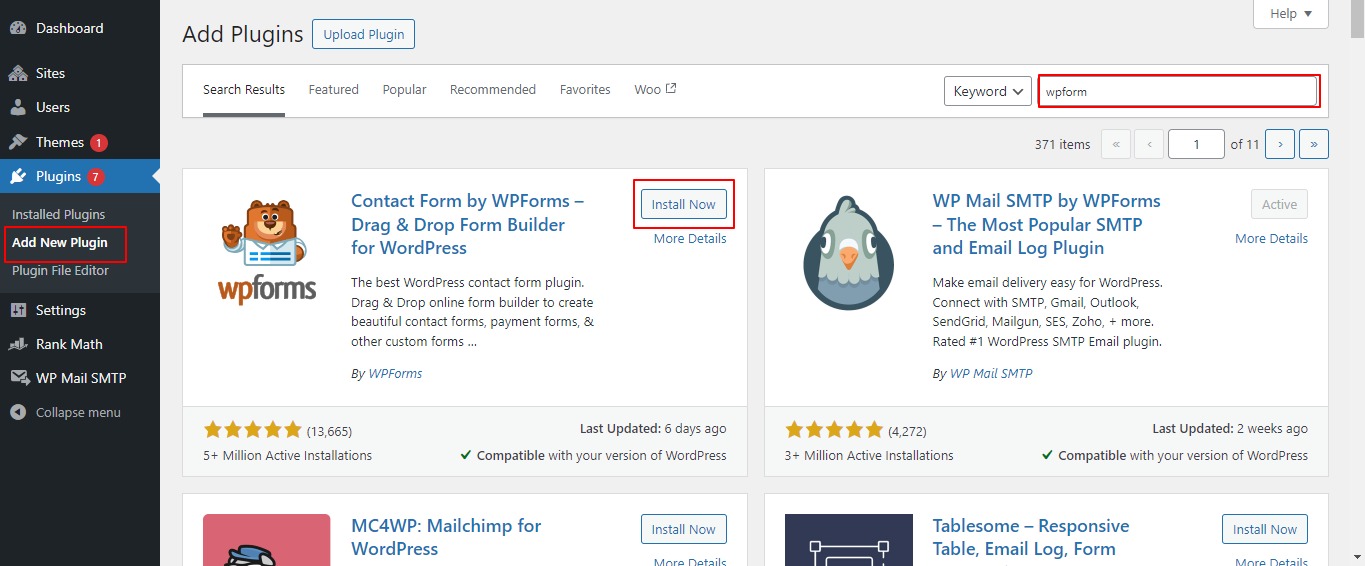
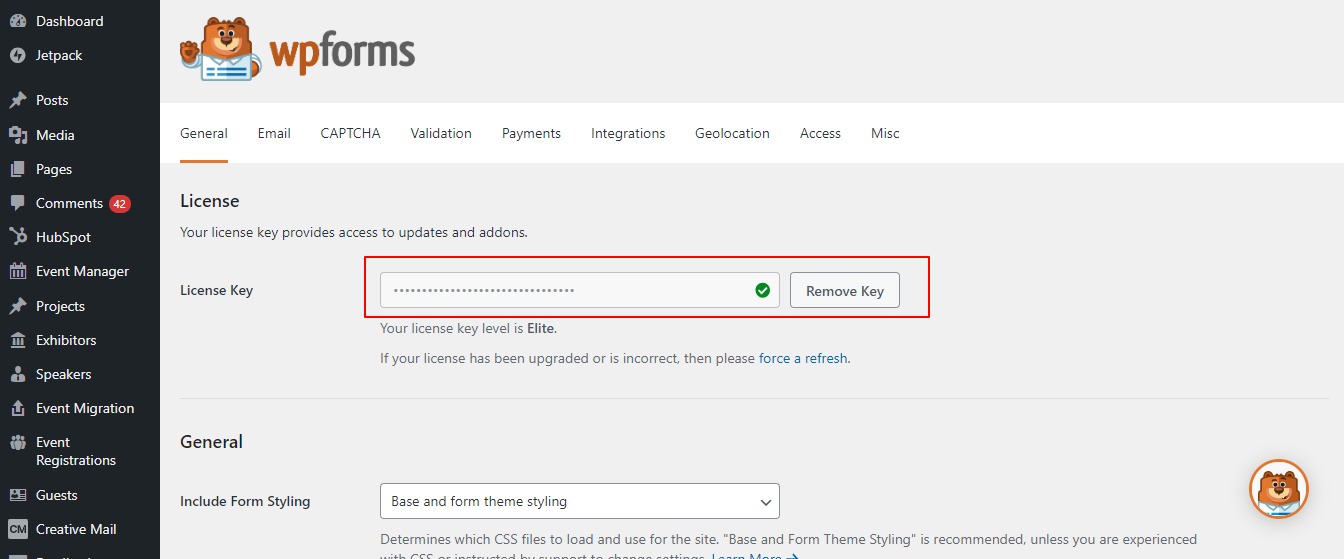
Upon activation, you need to head over to the WPForms » Settings page from the WordPress admin sidebar and enter your license key. You can get this information from your account on the WPForms website.
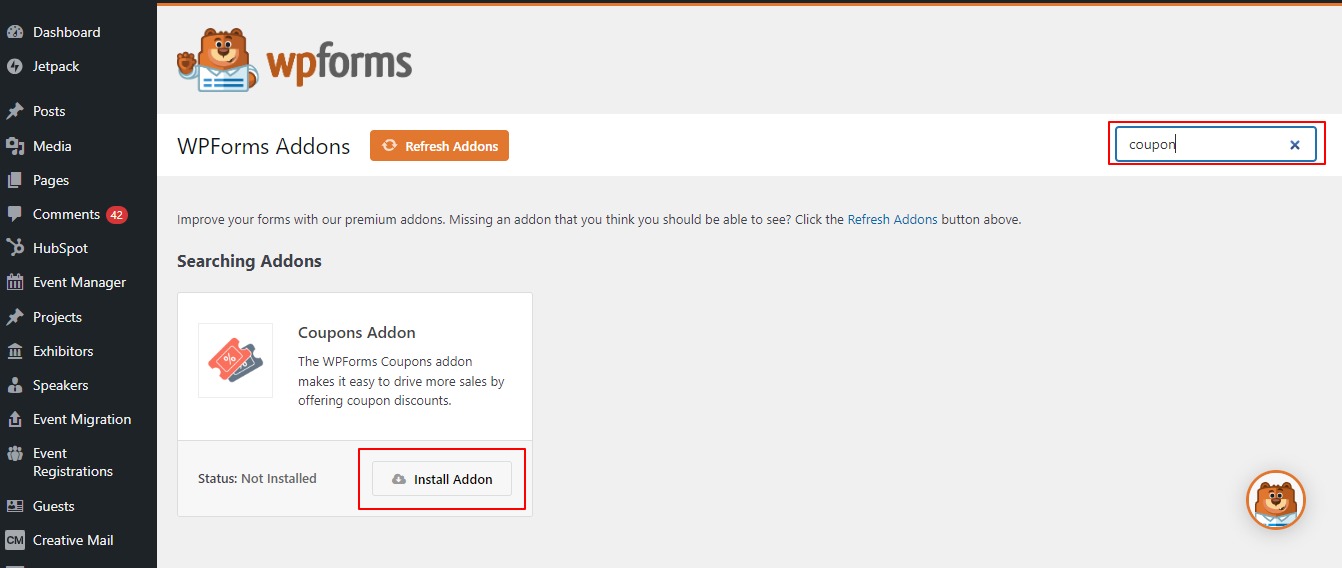
Next, visit the WPForms » Addons page from the WordPress dashboard and search for the Coupons addon. Once you have done that, click the ‘Install Addon’ button to download and activate it on your website.
After the addon has been activated, head over to the WPForms » Payments page from the admin area and switch to the ‘Coupons’ tab. From here, you need to click the ‘+ Add Coupon’ button to continue.
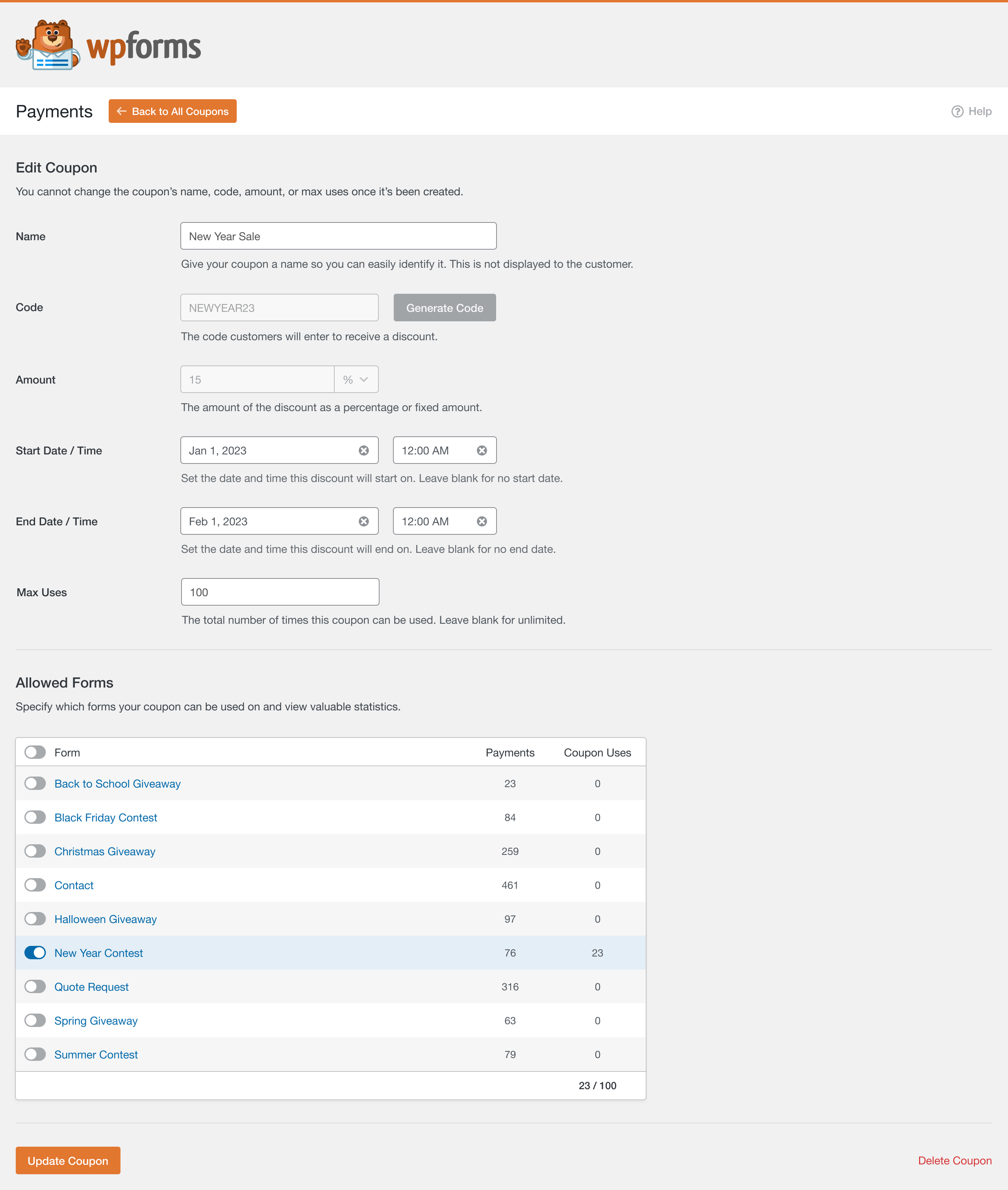
This will take you to the ‘Add New Coupon’ page, where you can start by typing a name for your coupon. Keep in mind that this name won’t be displayed for your users and is just for your reference.
After that, you have to type the code that users will use to get a discount on your website. If you don’t want to create a custom code, then simply click the ‘Generate Code’ button to let WPForms generate a code for you.
Next, you need to add the percentage or amount of discount that will be given to the customers upon using the coupon in the ‘Amount’ field. Once you have done that, you can also add a start date and end date for the coupon code. For example, if you want to create a coupon that will only be valid for a week, then you can add those dates into the fields.
After that, you must add the maximum number of times a single user can use the coupon code in the ‘Max Uses’ field. Now, you have to scroll down to the ‘Allowed Forms’ section on the page. From here, toggle the switch on next to the form where you want to enable the coupon code.
Finally, click the ‘Save Coupon’ button to store your settings.
How to add WordPress Coupon Code in your Form
Now, you need to open the form where you want to add the coupon code field. To do this, visit the WPForms » All Forms page from the WordPress dashboard and click the ‘Edit’ link under the form where you want to add a coupon field. This will launch the form in the form builder.
For this tutorial, we will be adding a coupon code field to a takeout order form. Here, you will notice available fields in the left column and a form preview on the right side of the screen. Simply drag and drop the Coupon field into the form.
Once you have done that, you must click on the field to open its settings in the left column. Next, choose the coupon that you created earlier from the ‘Allowed Coupons’ dropdown menu. After that, you can add a label or description for the coupon field and also toggle on the ‘Required’ switch. If you do this, then users won’t be able to submit the form without filling in the coupon code.
Next, switch to the ‘Payments’ tab to configure settings. With WPForms, you can easily accept payments from popular gateways like Stripe, PayPal, Authorize.net, and more. All you have to do is activate the addon for the gateway of your choice and then toggle the switch to enable it from the form builder. For more detailed instructions, you may want to see our tutorial on how to create a WordPress form with payment options.
Next, switch back to the ‘Fields’ tab and drag and drop the field for the payment gateway of your choice into the form. Now, you will be able to accept payments directly from WPForms after the user applies the discount coupon code. Once you are done, just click the ‘Save’ button at the top to store your settings.
Add the WordPress Form to a Page/Post
Now, it’s time for you to add the Takeout form with the coupon code to a WordPress page or post. Keep in mind that if the form where you added the coupon code field is already published on a page/post of your website, then it will automatically be updated. However, if you haven’t added the form yet, then open an existing or new page/post from your WordPress dashboard.
From here, click the ‘+’ button to open the block menu and add the WPForms block. After that, you need to choose the form with the coupon code field from the dropdown menu inside the block. Next, click the ‘Update’ or ‘Publish’ button to store your settings.
Now, you can visit your WordPress site to view the form with a coupon field in action.
Add a Message for Coupon Errors
If you also want to display a message to users who enter the wrong coupon code, then you must visit the WPForms » Settings page from the WordPress dashboard. From here, switch to the ‘Validation’ tab and scroll down to the ‘Coupon Error’ option. After that, type the sentence that will be displayed to users upon entering the wrong code. Once you are done, just click the ‘Save Settings’ button to store your changes. Now, if users enter the incorrect coupon code, then they will see your error message.
Track Coupon Usage With WPForms
With WPForms, you can also track the number of times your coupon was used to get a discount. This can help you see if your coupon codes and discounts are effective in driving sales or not. To view your coupon usage, just visit the WPForms » Payments page from the WordPress admin sidebar. You will see a summary chart of coupon usage on your WordPress site in the ‘Overview’ tab. From here, you can also click on the ‘Total Payments’ tab to view individual payments and see which customers used the coupon code on your site. This will help you decide if adding the coupon code field has helped you generate more revenue and been a successful campaign or not.
Free tips: Create a Custom Post Type WordPress Search Form in 2024
