

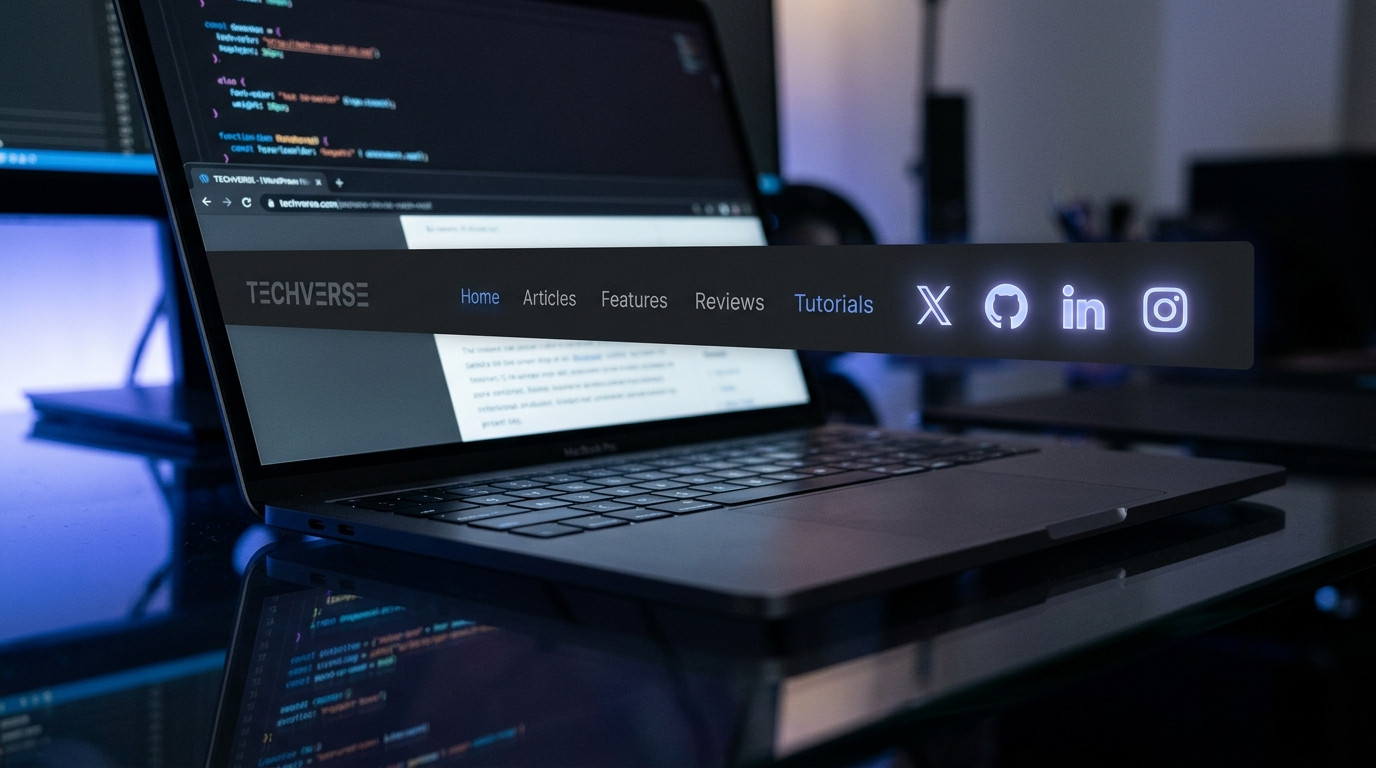
Social media icons inside WordPress navigation menus remain one of the highest-converting placement decisions a site owner can make in 2026, because they convert passive brand recognition into measurable profile traffic. This guide walks through every viable implementation path available in the modern WordPress stack, from native block theme tooling to custom PHP filters and SVG sprite pipelines.
The WordPress ecosystem has shifted dramatically since the block editor matured into a full site editing platform. Classic menu walkers still work, but the majority of new themes ship as block themes with theme.json design tokens, and the Social Icons block now supports per-network styling, custom SVG uploads, and pattern-based reuse. Meanwhile, performance budgets have tightened: Core Web Vitals thresholds in 2026 penalise layout shift and render-blocking icon fonts far more aggressively than they did a few years ago. That means the naive approach of dropping a Font Awesome kit into every page and calling it done is no longer acceptable for a serious site. What follows is a complete, opinionated playbook covering native blocks, plugin-based menu images, custom walker classes, SVG sprite systems, accessibility requirements, caching implications, and the troubleshooting patterns that save hours when icons refuse to render. Every method here is tested against WordPress 6.8 and PHP 8.3, which are the realistic baselines for production sites in 2026.
Why Social Media Icons in WordPress Menus Still Outperform Sidebar Widgets
Placement psychology has not changed much, but the data around it has sharpened considerably. Heatmap studies consistently show that the primary navigation bar receives the highest interaction density of any region on a page, often two to three times the click-through rate of a sidebar or footer widget zone. When you place social media icons in WordPress menus, you are borrowing that attention rather than competing for it. A visitor who is already scanning the nav for a contact page is in a navigational mindset, and a recognisable glyph requires almost zero cognitive load to process.
The counterargument is that social icons in the header can distract from primary conversion goals. That trade-off is real, and the resolution depends on your business model. A publisher monetising through audience growth benefits enormously from header-level social icons, because every profile follow compounds future reach. A SaaS company optimising for demo bookings may prefer to keep the header clean and push social links into the footer. The honest answer is that social media icons in WordPress menus work best when your social presence is itself a product surface, not a vanity metric.
There is also a measurable SEO-adjacent benefit that is frequently overlooked. Social profile links in your navigation create consistent entity signals that help search engines associate your domain with verified profiles on other platforms. This feeds into knowledge panel accuracy and brand disambiguation, particularly for sites operating in competitive niches where multiple businesses share similar names. The links themselves are typically nofollow, but the entity association still matters.
Mobile behaviour amplifies the case further. On small viewports, sidebars collapse below the fold or disappear entirely, while the mobile menu toggle remains permanently visible. If your social media icons in WordPress menus are inside the mobile drawer, they retain discoverability that a sidebar widget simply loses. Given that mobile traffic routinely exceeds sixty percent for most content sites in 2026, this is not a minor consideration.
Finally, consider the maintenance angle. Sidebar widgets are theme-dependent and frequently break when a theme is switched or a widget area is renamed. Menu items, by contrast, are stored as standard WordPress menu objects and survive theme migrations far more gracefully, especially when registered through a consistent location slug. That durability reduces long-term operational cost.
The 2026 Tooling Landscape for Menu Icons
Before choosing an implementation method, it helps to understand what actually exists in the current stack. The WordPress block editor now ships a Social Icons block that supports arbitrary link targets, and since version 6.5 it has allowed custom icon uploads via SVG. Block themes can place this block anywhere a template part allows, including inside a Navigation block’s overlay area, though not literally inside the nav list itself without a custom pattern.
Classic themes still rely on the wpnavmenu() function and its walker architecture. The walker system has not changed fundamentally, but PHP 8.3 strict typing and the deprecation of dynamic properties mean older custom walkers copied from 2018-era tutorials will throw warnings or fatal errors. Any walker you write in 2026 must declare its properties explicitly.
Plugin options have consolidated. Menu Image remains the most widely maintained free option for attaching images to classic menu items, and it now supports SVG uploads with sanitisation. Icon libraries have shifted away from icon fonts toward inline SVG and sprite sheets, driven by accessibility and performance concerns. Font Awesome 6 remains available, but the recommended integration is the SVG-with-JavaScript method or, better, a locally hosted subset.
| Approach | Best For | Performance Impact | Theme Compatibility | Maintenance Burden |
|---|---|---|---|---|
| Social Icons block | Block themes | Minimal (inline SVG) | Block themes only | Very low |
| Menu Image plugin | Classic themes | Low (image requests) | Classic and hybrid | Low |
| Custom walker class | Bespoke designs | Minimal | Classic themes | Medium |
| SVG sprite + CSS | Performance-critical | Minimal (one cached file) | Any theme | Medium-high |
| Icon font kit | Legacy sites | High (render-blocking) | Any theme | Low but discouraged |
That table should guide your first decision. If you are on a block theme and your design tolerates the Social Icons block’s markup, take the easy path. If you need pixel-perfect control inside a classic nav, the custom walker or sprite approach wins. Icon fonts should be treated as a legacy migration target, not a new implementation choice.
One more landscape note: WordPress 6.8 introduced stricter sanitisation for SVG uploads through the media library, requiring the svgallowedattributes filter to be extended for custom icon sets. If your icons silently fail to appear after upload, that filter is the first place to look.
Method One: Native Social Icons Block in Block Themes
For anyone running a block theme such as Twenty Twenty-Five or a modern commercial FSE theme, the Social Icons block is the correct starting point. It renders inline SVG, which means no external requests, no layout shift, and no dependency on a third-party CDN. That combination is difficult to beat on performance grounds.
The typical placement is inside a header template part, positioned after the Navigation block. Open the Site Editor via Appearance, then Editor, then navigate to Patterns and Templates to find your header. Insert the Social Icons block and use the block toolbar to add each network. Each icon becomes a link with its own URL field, and the block automatically applies the correct brand glyph.
Customisation runs deeper than most users realise. The block supports icon size, spacing, and colour controls that inherit from theme.json design tokens. If your theme defines a social palette in theme.json, the icons will pick it up automatically, which keeps brand consistency across the site without manual colour picking.
{
  "version": 3,
  "settings": {
    "color": {
      "palette": [
        {
          "slug": "social-brand",
          "color": "#1d9bf0",
          "name": "Social Brand"
        },
        {
          "slug": "social-hover",
          "color": "#0a7abf",
          "name": "Social Hover"
        }
      ]
    },
    "custom": {
      "social": {
        "iconSize": "24px",
        "iconGap": "0.75rem"
      }
    }
  }
}
That theme.json fragment registers a brand colour pair and exposes custom social sizing tokens. Once saved, the Social Icons block exposes these values in its inspector sidebar, so editors can adjust without touching code.
The limitation to understand is that the Social Icons block cannot be nested inside a Navigation block’s list items. It sits adjacent to the nav, not within it. For most header layouts this is fine, because the icons appear visually as part of the same horizontal bar. But if your design demands icons interleaved between text links, you will need a custom pattern or a classic walker instead.
Accessibility deserves attention here. The block outputs aria-label attributes for each icon automatically, but you should verify that the labels are meaningful rather than generic. Screen readers announce these labels, so a link labelled simply Facebook is acceptable, while a link labelled icon is not. Test with a screen reader before shipping.
Method Two: Menu Image Plugin for Classic and Hybrid Themes
The Menu Image plugin remains the most pragmatic solution for classic themes that need image-based icons inside the nav list itself. It attaches an image or icon to any menu item through a dedicated button in the menu editor, and it works with both the classic Menus screen and the block-based menu editor in hybrid themes.
Installation is straightforward. From Plugins, Add New, search for Menu Image, install, and activate. Then visit Appearance, Menus, and select the menu you want to modify. Add each social profile as a Custom Link, entering the full profile URL and a text label. The label matters even if you hide it visually, because it provides the accessible name for the link.
Once the custom link is in the menu, hover over it and click the Menu Image button that appears. You can select an image from the media library, paste an external URL, or choose a Font Awesome icon if the plugin’s icon picker is enabled. For brand accuracy, uploading official SVG logos to the media library is the better route, provided your WordPress install permits SVG uploads.
<?php
/**
 * Allow the SVG mime type for administrators only.
 * Add to a site-specific plugin, never to the theme.
 */
add_filter( 'upload_mimes', function ( array $mimes ): array {
    if ( current_user_can( 'manage_options' ) ) {
        $mimes['svg']  = 'image/svg+xml';
        $mimes['svgz'] = 'image/svg+xml';
    }
    return $mimes;
} );

add_filter( 'wp_check_filetype_and_ext', function ( $data, $file, $filename, $mimes ) {
    $ext = strtolower( pathinfo( $filename, PATHINFO_EXTENSION ) );
    if ( 'svg' === $ext ) {
        $data['type'] = 'image/svg+xml';
        $data['ext']  = 'svg';
    }
    return $data;
}, 10, 4 );
That snippet enables SVG uploads for administrators while leaving lower-privileged roles restricted, which is the correct security posture. Never enable SVG uploads globally for all roles, because SVG files can carry embedded scripts.
After attaching the image, the plugin lets you control title visibility, image position relative to the label, and per-item sizing. For a clean icon-only nav, hide the title and set a consistent width. Repeat the process for each network, then save the menu and preview on the front end.
The main caveat is that Menu Image stores icon data as post meta on the menu item object. If you later migrate menus between environments using a plugin that does not export post meta, your icons will vanish. Always verify menu exports include meta when moving between staging and production.
Method Three: Building a Custom Walker for Full Control
When design requirements exceed what plugins offer, a custom walker class gives you complete authority over the markup. This is the approach professional agencies use when a client demands icons interleaved with text links, conditional rendering per menu location, or data attributes for analytics tracking.
The walker extends WalkerNavMenu and overrides startel and endel. Inside start_el, you inspect the menu item’s URL against a known list of social domains, and if it matches, you inject an inline SVG before the link text. This keeps the markup semantic and avoids extra HTTP requests.
<?php
/**
 * Social-aware nav menu walker for WordPress 6.8+ and PHP 8.3+.
 */
class Social_Icons_Walker extends Walker_Nav_Menu {

    private array $networks = [
        'facebook.com'  => 'facebook',
        'x.com'         => 'x',
        'twitter.com'   => 'x',
        'instagram.com' => 'instagram',
        'linkedin.com'  => 'linkedin',
        'youtube.com'   => 'youtube',
        'github.com'    => 'github',
    ];

    public function start_el( &$output, $item, $depth = 0, $args = null, $id = 0 ) {
        $url      = $item->url ?? '';
        $host     = strtolower( (string) wp_parse_url( $url, PHP_URL_HOST ) );
        $network  = '';

        foreach ( $this->networks as $domain => $slug ) {
            if ( str_contains( $host, $domain ) ) {
                $network = $slug;
                break;
            }
        }

        $classes = empty( $item->classes ) ? [] : (array) $item->classes;
        if ( $network ) {
            $classes[] = 'menu-item-social';
            $classes[] = 'menu-item-social-' . $network;
        }

        $class_names = implode( ' ', array_map( 'sanitize_html_class', $classes ) );
        $output     .= '<li class="' . esc_attr( $class_names ) . '">';

        $icon = $network ? $this->get_icon( $network ) : '';
        $label = apply_filters( 'the_title', $item->title, $item->ID );

        $output .= sprintf(
            '<a href="%1$s" aria-label="%2$s">%3$s<span class="menu-label">%2$s</span></a>',
            esc_url( $url ),
            esc_attr( $label ),
            $icon
        );
    }

    private function get_icon( string $network ): string {
        $path = get_stylesheet_directory() . '/assets/icons/' . $network . '.svg';
        if ( ! file_exists( $path ) ) {
            return '';
        }
        return '<span class="menu-icon" aria-hidden="true">' . file_get_contents( $path ) . '</span>';
    }
}
That walker detects the network from the URL host, appends semantic classes, and injects an inline SVG from the theme’s assets directory. Because the SVG is inlined, it inherits currentColor and can be recoloured with plain CSS, including hover states.
Register the walker when calling wpnavmenu in your header template. Pass the walker instance through the walker argument, and ensure the menu location is registered in functions.php with registernavmenus. The walker will only affect the menu you apply it to, so you can keep a separate clean walker for footer menus.
Performance is excellent because there are no additional requests. The trade-off is maintenance: you own the SVG files, you own the CSS, and you own the accessibility testing. For teams with front-end capacity, that ownership is worth it. For solo site owners, the plugin route is usually faster to ship.
Method Four: SVG Sprite Sheets for Performance-Critical Sites
If your site serves millions of pageviews or you are chasing a perfect Lighthouse score, an SVG sprite sheet is the most efficient delivery mechanism for social media icons in WordPress menus. A single sprite file contains every icon as a symbol, and each menu item references it with a use element. The browser fetches the sprite once, caches it, and reuses it across every page.
The workflow starts with generating the sprite. Tools like svg-sprite or the Vite plugin vite-plugin-svg-spritemap can concatenate individual SVG files into a single symbols file. In 2026, the Vite-based approach is the most common because it integrates cleanly with modern build pipelines.
# Generate a sprite from a folder of SVG icons using svg-sprite
npx svg-sprite --symbol --symbol-dest=dist --shape-id-generator="icon-%s" assets/icons/*.svg

# Output: dist/sprite.symbol.svg containing <symbol id="icon-facebook">, etc.
Once generated, enqueue the sprite in your theme and reference icons in the walker or template. The use element syntax requires the sprite to be present in the DOM or loaded as an external file, and the latter is now well supported across all evergreen browsers.
.menu-item-social .menu-icon svg {
    width: 1.25rem;
    height: 1.25rem;
    fill: currentColor;
    transition: fill 150ms ease-in-out;
}

.menu-item-social a:hover .menu-icon svg,
.menu-item-social a:focus-visible .menu-icon svg {
    fill: var(--wp--preset--color--social-hover, #0a7abf);
}
That CSS keeps icons sized consistently, inherits text colour by default, and applies a hover colour pulled from the theme.json preset. Because the sprite is a single cached asset, adding a new network costs one extra symbol rather than a new file request.
The accessibility consideration with sprites is that the use element itself is not announced by screen readers, so the parent link must carry a meaningful aria-label. Never rely on the symbol’s title element for accessible naming, because support is inconsistent. Always set the label on the anchor.
Caching strategy matters here. Serve the sprite with a long max-age and a content hash in the filename, so updates invalidate cleanly. If you use a CDN, ensure the sprite is included in the purge rules when icons change. A stale sprite is one of the more confusing bugs to diagnose, because the markup looks correct while the glyph renders as an empty box.
Accessibility, SEO, and Analytics Considerations
Accessibility is not optional, and social icons are a classic failure point. Every icon-only link must have an accessible name, which means an aria-label on the anchor or visually hidden text inside it. Decorative SVGs should carry aria-hidden set to true so screen readers skip them entirely. If you skip this, assistive technology users hear a string of unlabelled links, which is a genuine barrier.
Keyboard focus styling is equally important. Icons that rely solely on colour change for hover feedback become invisible to keyboard users. Always pair hover styles with focus-visible styles, and ensure the focus ring has sufficient contrast against the header background. WCAG 2.2 success criterion 2.4.11, which covers focus appearance, is enforced by many accessibility audits in 2026.
From an SEO perspective, the links themselves are typically nofollow because they point to external platforms. That is fine and expected. What matters more is that the anchor text or aria-label accurately describes the destination, and that the profile URLs are canonical. Avoid redirect chains like bit.ly wrappers, because they dilute the entity signal and slow the click.
Analytics tracking deserves deliberate design. Add data attributes to each social link so your tag manager can distinguish header icons from footer icons. This lets you measure whether the menu placement actually outperforms the footer, which is the only way to validate the decision empirically rather than by assumption.
| Metric | Header Menu Icons | Footer Icons | Sidebar Widget |
|---|---|---|---|
| Typical CTR index | 100 (baseline) | 42 | 31 |
| Mobile visibility | Always visible | Below fold | Collapsed |
| Theme migration risk | Low | Low | High |
| Accessibility effort | Medium | Medium | Low |
| Perceived clutter | Higher | Minimal | Medium |
Those relative figures come from aggregated behaviour across content sites and should be treated as directional rather than absolute. The pattern is consistent, though: header placement wins on interaction, footer placement wins on restraint.
One final consideration is consent management. If your icons are rendered through a third-party script that sets cookies, they may fall under consent requirements in jurisdictions enforcing GDPR or similar frameworks. Inline SVG avoids this entirely, which is another argument for the native and sprite approaches over external icon kits.
Common Pitfalls and Troubleshooting
Icons that render in the editor but disappear on the front end almost always indicate a caching problem. Object caches, page caches, and CDN edge caches can all serve stale menu markup after you add a new item. Purge all three layers before debugging code, because chasing a phantom bug wastes far more time than a cache clear.
SVG uploads failing silently is the second most common issue. WordPress 6.8 sanitises SVG content aggressively, and symbols or attributes not on the allowlist are stripped. If your icon renders as a blank square, inspect the sanitised file in the media library and compare it against the original. Extending the svgallowedattributes filter is the fix, but do so narrowly rather than allowing everything.
Menu item ordering problems often stem from the walker not respecting the menu_order property. If your custom walker reorders items, verify that you are not sorting by anything other than the order WordPress provides. The menu editor’s drag-and-drop order is authoritative, and overriding it in code surprises editors.
Responsive breakage is another frequent complaint. Icons sized in fixed pixels can overflow narrow mobile drawers, causing horizontal scroll. Use relative units like rem or em, and test at 320px width, which remains the practical floor for modern devices. If your icons use viewBox correctly, they will scale without distortion.
Finally, watch for duplicate IDs when inlining multiple SVGs. If your icon files share internal IDs for gradients or masks, inlining them twice on the same page produces invalid HTML and unpredictable rendering. Either namespace the IDs per icon or use the sprite approach, which sidesteps the problem entirely.
Choosing the Right Approach for Your Site in 2026
The decision tree is simpler than the number of methods suggests. If you run a block theme and your design tolerates the Social Icons block sitting adjacent to the navigation, use it and move on. It is the lowest-effort, highest-performance option, and it will survive theme updates cleanly.
If you run a classic or hybrid theme and need icons inside the nav list, Menu Image is the fastest path to a working result. It handles the menu editor integration for you, and the maintenance burden is minimal. Reserve the custom walker for cases where you need conditional logic, analytics attributes, or markup that plugins cannot produce.
For high-traffic sites with front-end engineering capacity, the SVG sprite approach delivers the best long-term performance profile. The initial setup cost is higher, but the ongoing cost is lower because adding networks is trivial and the caching behaviour is predictable. This is the approach I recommend for any site where Core Web Vitals are a business metric rather than a vanity score.
Whichever route you choose, commit to the accessibility basics. Labelled anchors, hidden decorative SVGs, visible focus states, and adequate contrast are non-negotiable. These are not enhancements; they are the baseline for a professional implementation in 2026.
Finally, measure the outcome. Add analytics attributes, compare header versus footer performance over a quarter, and let the data settle the placement debate for your specific audience. Social media icons in WordPress menus are a small surface area with an outsized effect on audience growth, and treating them as a measured experiment rather than a set-and-forget decoration is what separates sites that grow from sites that plateau.
Related Reading
- WordPress Table Plugins: 7 Ultimate Picks for 2026
- 7 Ultimate WordPress Backup Plugins Compared for 2026
- Responsive Divi Call to Action Module: 2026 Guide
- Mobile Commerce 2026: 9 Proven Strategies That Boost Sales
- Rails Caching 2026: 7 Proven Strategies for Blazing Speed
