

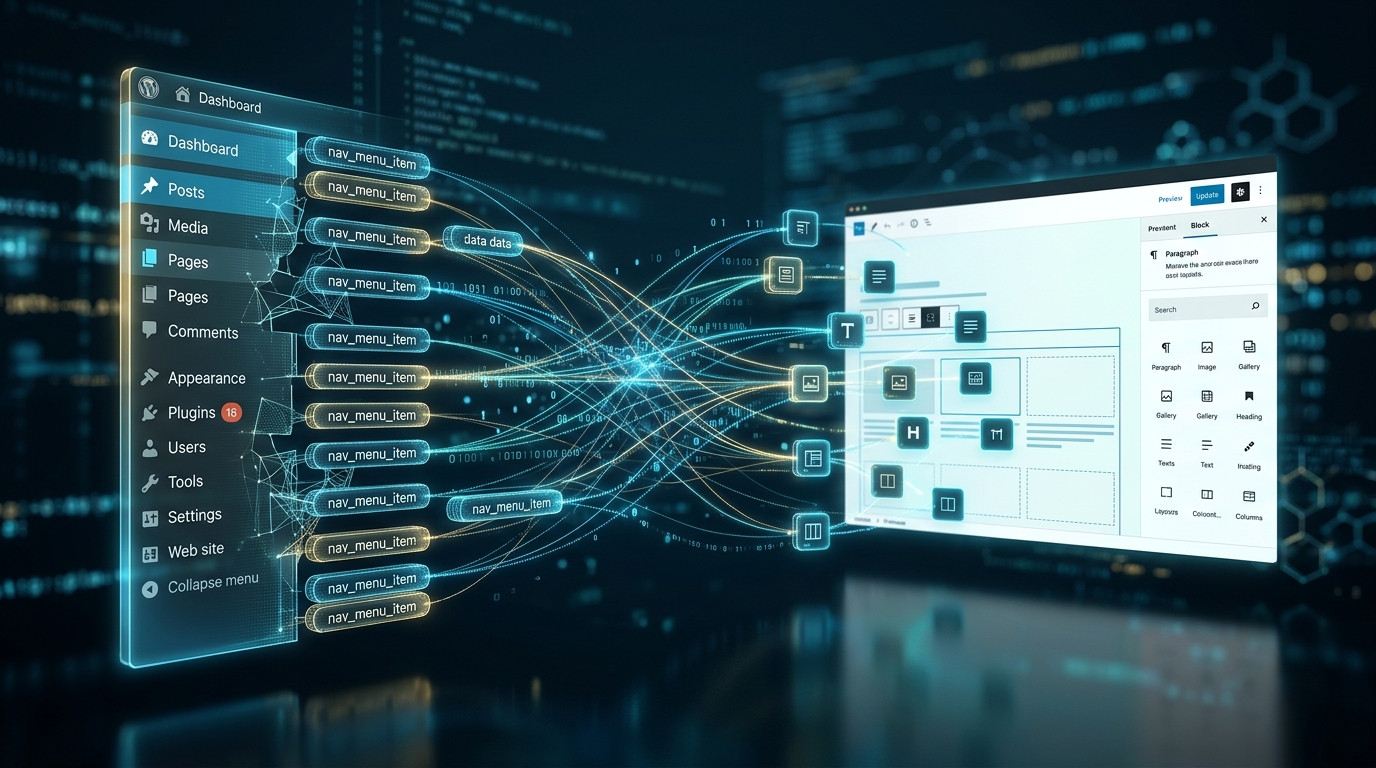
WordPress navigation has quietly become one of the most consequential surfaces of a modern site, because menus now drive Core Web Vitals, accessibility compliance, and conversion paths simultaneously. In 2026, the block-based Navigation block, the Interactivity API, and full-site editing have replaced the classic drag-and-drop-only workflow that dominated the previous decade. This guide dissects the WordPress menu feature end to end, from data storage in the database to rendering strategies that keep Largest Contentful Paint under control.
A WordPress menu is far more than a list of links rendered in a header. It is a structured taxonomy of navigation intent, persisted as a custom post type called navmenuitem, linked to a menu taxonomy term, and resolved at runtime through a walker class or a block-based render callback. Understanding that architecture matters because every performance, accessibility, and multilingual decision you make flows from it. Whether you are maintaining a legacy theme with wpnavmenu() or building a fully block-based theme.json-driven site, the underlying mechanics are the same, and the trade-offs between the two approaches are sharper than ever in 2026.
What the WordPress Menu Feature Actually Is Under the Hood
The menu feature in WordPress is implemented as a custom post type named navmenuitem, with each individual link stored as a post row in the wpposts table and its metadata stored in wppostmeta. The grouping mechanism is a taxonomy called nav_menu, so a single menu is technically a taxonomy term, and each item is a post assigned to that term. This design is unusual and frequently surprises developers who expect menus to live in their own dedicated tables, but it is precisely why menus are portable across themes and exportable through the WordPress Importer.
Each navmenuitem carries a set of meta keys that define its behaviour. The menuitemtype key distinguishes between posttype, taxonomy, and custom link entries. The menuitemobjectid points to the referenced page, post, or category. The menuitemmenuitemparent key establishes hierarchy, which is how dropdowns and mega menus are constructed. Finally, menuitemurl stores the raw URL for custom links, and menuitem_target controls whether the link opens in a new tab. When you drag an item to nest it, WordPress simply rewrites the parent meta value, which is why reordering is cheap and non-destructive.
Theme support for menus is declared through registernavmenus(), which registers named locations such as primary, footer, and mobile. A theme can register any number of locations, and each location can be assigned exactly one menu at a time through the Menus admin screen or, in block themes, through the Site Editor. This one-menu-per-location constraint is a common source of confusion when site owners want different menus on different templates, which is why conditional logic or multiple registered locations are the standard workaround.
Rendering historically happened through the WalkerNavMenu class, a recursive PHP class that walks the item tree and emits nested ul and li elements. In 2026, block themes render navigation through the core/navigation block, which uses a server-side render callback plus the Interactivity API for client-side behaviours like submenu toggling and overlay drawers. Both paths ultimately read the same underlying data, so migrating from classic to block navigation does not require re-entering your links, though it does require rethinking markup and styling.
One architectural detail that matters for performance is that menu items are cached. WordPress caches the entire menu object tree in the object cache under a key derived from the menu term ID and last-changed timestamp. On sites with persistent object caching such as Redis or Memcached, this means menu rendering is nearly free after the first request. On sites without persistent caching, every page load re-queries the menu, which is a measurable cost on high-traffic installations and a strong argument for adding Redis in 2026.
Classic Menus Versus Block Navigation in 2026
The single biggest shift in the WordPress menu feature over the past few years is the migration from the classic Appearance > Menus screen to the block-based Navigation block inside the Site Editor. Classic menus still function and are fully supported, but they are effectively in maintenance mode. New block themes register menu locations through theme.json and expose them as Navigation blocks, and the classic Menus screen is hidden entirely on pure block themes unless you explicitly re-enable it.
The practical difference is where the menu lives. A classic menu is a global entity stored in the database and assigned to a location, so changing it updates every page that renders that location. A Navigation block is a block instance stored inside a template part, which means you can have different navigation on different templates, and you can even nest a Navigation block inside a Group or Columns block for complex header layouts. This granularity is powerful but also means menu changes are now template changes, which affects your deployment and version control workflow.
| Capability | Classic Menus | Block Navigation (2026) |
|---|---|---|
| Storage model | nav_menu taxonomy term | Block instance in template part |
| Editing surface | Appearance > Menus | Site Editor |
| Per-template variation | Requires code | Native |
| Submenu behaviour | CSS and JS in theme | Interactivity API |
| Mega menu support | Custom walker | Inner blocks and patterns |
| REST API exposure | Limited | Full block REST endpoints |
| Multilingual integration | Polylang and WPML filters | Block-level translation |
From a developer experience standpoint, block navigation is more flexible but less predictable. Because the menu is a block, its markup is generated by the block render callback and can change between WordPress versions. Classic menus, by contrast, produce markup you control entirely through your own walker. Teams that need pixel-perfect, contractually stable markup sometimes still prefer classic menus for that reason, even in 2026, and that is a legitimate engineering decision rather than nostalgia.
Performance characteristics differ as well. Classic menus render synchronously in PHP with minimal overhead. Block navigation adds the Interactivity API runtime, which is a small JavaScript bundle loaded only when interactive blocks are present. On a simple site the difference is negligible, but on a site already shipping heavy JavaScript, the Interactivity API is a marginal addition, whereas on a static marketing site it can be the only script you load, which is a net win for maintainability even if it adds a few kilobytes.
Accessibility is where block navigation has genuinely pulled ahead. The core Navigation block ships with keyboard navigation, focus management, aria-expanded state on submenu toggles, and Escape-to-close behaviour out of the box. Classic menus require you to implement all of that yourself or rely on a theme that does. If your accessibility audit is failing on navigation, migrating to block navigation is often the fastest remediation path in 2026.
Building a Menu Programmatically With Modern PHP
While the admin UI handles most menu creation, programmatic menu building remains essential for theme activation hooks, automated provisioning, and multisite rollouts. The modern approach uses wpcreatenavmenu(), wpupdatenavmenuitem(), and wpgetnavmenu_object(), all of which are stable and unchanged in signature for years. The key discipline is idempotency: your provisioning code must be safe to run multiple times without duplicating items.
<?php
/**
 * Provision a primary navigation menu on theme activation.
 * Idempotent: safe to run repeatedly.
 */
function acme_provision_primary_menu() {
    $menu_name = 'Primary Navigation';
    $menu      = wp_get_nav_menu_object( $menu_name );

    if ( ! $menu ) {
        $menu_id = wp_create_nav_menu( $menu_name );
    } else {
        $menu_id = $menu->term_id;
    }

    $items = array(
        array( 'title' => 'Home',     'url' => home_url( '/' ) ),
        array( 'title' => 'Services', 'url' => home_url( '/services/' ) ),
        array( 'title' => 'Pricing',  'url' => home_url( '/pricing/' ) ),
        array( 'title' => 'Docs',     'url' => home_url( '/docs/' ) ),
        array( 'title' => 'Contact',  'url' => home_url( '/contact/' ) ),
    );

    $existing = wp_get_nav_menu_items( $menu_id );
    $titles   = wp_list_pluck( (array) $existing, 'title' );

    foreach ( $items as $item ) {
        if ( in_array( $item['title'], $titles, true ) ) {
            continue;
        }

        wp_update_nav_menu_item(
            $menu_id,
            0,
            array(
                'menu-item-title'  => $item['title'],
                'menu-item-url'    => $item['url'],
                'menu-item-status' => 'publish',
                'menu-item-type'   => 'custom',
            )
        );
    }

    $locations            = get_theme_mod( 'nav_menu_locations', array() );
    $locations['primary'] = $menu_id;
    set_theme_mod( 'nav_menu_locations', $locations );
}
add_action( 'after_switch_theme', 'acme_provision_primary_menu' );
Notice the use of wplistpluck() to build a flat list of existing titles before inserting. This is the cheapest idempotency guard available and avoids a full meta query. For more complex scenarios where you need to match on URL rather than title, you can pluck the url property instead, though be aware that wpgetnavmenuitems() returns objects with a url property that reflects the resolved permalink, not the raw stored value.
When assigning the menu to a location, setthememod() writes to the thememods option for the active theme. This is important because menu locations are theme-scoped, not global. If you switch themes, the assignment is lost, which is why provisioning code should run on afterswitch_theme rather than on every init. Running it on init is a common performance mistake that writes to the options table on every request and can cause cache invalidation storms on object-cached sites.
For multisite networks, wrap the provisioning in a loop over getsites() and call switchtoblog() before each iteration, then restorecurrentblog() afterward. This pattern is well established but easy to get wrong: forgetting to restore the blog context leaks state into subsequent code and produces baffling bugs where menus appear on the wrong site. Always pair switchtoblog() with restorecurrentblog() in a finally-style structure, or use the newer wpswitchtoblog() helper if your minimum WordPress version supports it.
Rendering Menus: Walkers, Blocks, and the Interactivity API
Rendering a classic menu means calling wpnavmenu() with an arguments array that specifies the themelocation, container, menuclass, and optionally a custom walker. The walker is where all the interesting customisation happens. A custom walker extends WalkerNavMenu and overrides startlvl(), endlvl(), startel(), and endel() to produce whatever markup your design requires, including mega menu panels, icon spans, or descriptive subtext.
<?php
/**
 * Custom walker that adds a description span and ARIA attributes.
 */
class Acme_Mega_Walker extends Walker_Nav_Menu {

    public function start_lvl( &$output, $depth = 0, $args = null ) {
        $indent  = str_repeat( "t", $depth );
        $classes = array( 'sub-menu', 'sub-menu--depth-' . ( $depth + 1 ) );
        $output .= "n{$indent}<ul class="" . esc_attr( implode( ' ', $classes ) ) . "">n";
    }

    public function start_el( &$output, $item, $depth = 0, $args = null, $id = 0 ) {
        $has_children = in_array( 'menu-item-has-children', (array) $item->classes, true );
        $classes      = empty( $item->classes ) ? array() : (array) $item->classes;
        $classes[]    = 'menu-item-' . $item->ID;

        $output .= '<li class="' . esc_attr( implode( ' ', $classes ) ) . '">';

        $atts = array(
            'href'          => esc_url( $item->url ),
            'aria-expanded' => $has_children ? 'false' : null,
            'aria-haspopup' => $has_children ? 'true' : null,
        );

        $attr_string = '';
        foreach ( $atts as $key => $value ) {
            if ( null === $value ) {
                continue;
            }
            $attr_string .= ' ' . $key . '="' . esc_attr( $value ) . '"';
        }

        $output .= '<a' . $attr_string . '>' . esc_html( $item->title );

        if ( ! empty( $item->description ) && 0 === $depth ) {
            $output .= '<span class="menu-desc">' . esc_html( $item->description ) . '</span>';
        }

        $output .= '</a>';
    }
}
This walker demonstrates two important 2026 practices. First, ARIA attributes are emitted server-side so that the initial HTML is already accessible before any JavaScript runs, which matters for both screen readers and Core Web Vitals. Second, the description is only rendered at depth zero, keeping dropdowns clean. Emitting aria-expanded on a link that has no JavaScript to toggle it is a common accessibility anti-pattern, so pair this walker with a small script that flips the attribute on interaction.
Block navigation takes a different route. The core/navigation block renders a wp_navigation post type, which is a separate post that stores the block markup for the menu. This means a block menu is itself a post, editable through the Site Editor, and translatable through standard post translation workflows. The Interactivity API then attaches directives such as data-wp-interactive and data-wp-on–click to handle submenu toggling without a full page reload, using a store defined in viewScriptModule.
A subtle but important consequence of the wp_navigation post type is that menus become revision-controlled. You can see who changed the menu and when, and you can restore a previous revision. Classic menus have no revision history at all, which is a genuine operational advantage for block navigation on teams where multiple editors touch the header. If your organisation has ever had a menu accidentally broken by an editor, this alone may justify migration.
Performance Tuning for Menu Rendering at Scale
Menu rendering is rarely the bottleneck on a small site, but on a site with hundreds of menu items, deep nesting, or dynamic item generation, it becomes measurable. The first optimisation is enabling persistent object caching. Without it, every uncached page load triggers a getterms() call for the navmenu taxonomy plus a WP_Query for the items, and on a menu with 200 items that query can take tens of milliseconds on a loaded database.
The second optimisation is avoiding dynamic menu item filters that run expensive queries. The wpnavmenu_objects filter is a popular hook for injecting conditional items, but if your callback performs a database query or an HTTP request per item, you have effectively turned a cached operation into an uncached one. Cache the result of your expensive computation in a transient keyed by the relevant context, and let the filter read from that cache instead.
| Optimisation | Typical Gain | Risk |
|---|---|---|
| Persistent object cache | 40-70% render time | Infrastructure cost |
| Static menu items only | 20-40% | Loses dynamic personalisation |
| Cached filter results | 30-60% | Stale data window |
| Reduced nesting depth | 10-25% | Information architecture change |
| Deferred submenu JS | 5-15% LCP | Interaction delay |
The third optimisation concerns markup size. A deeply nested menu with five levels and descriptive subtext can easily produce 40 kilobytes of HTML, which inflates your document size and delays the Largest Contentful Paint if the header is the LCP element. Flattening your information architecture is the real fix, but if you cannot, consider rendering only the first two levels server-side and loading deeper levels on demand through the REST API or a lightweight JSON endpoint.
The fourth optimisation is font and icon loading. Menu items frequently include icon fonts or SVG sprites, and an icon font that blocks rendering is a classic LCP killer. In 2026, inline SVG is the correct choice for menu icons because it eliminates a network request, avoids FOUT, and can be styled with currentColor. If you must use an icon font, subset it to only the glyphs your menu uses and preload the subset file.
Finally, measure before and after. Use the WordPress Performance Lab plugin, Query Monitor, and a synthetic Lighthouse run against a cold cache. Menu changes that feel trivial in the editor can shift LCP by hundreds of milliseconds on mobile, and the only way to know is to measure with the cache cleared. Establish a baseline, change one variable, and re-measure; bundling multiple menu changes into one deployment makes attribution impossible.
Accessibility Requirements for Menus in 2026
Accessibility is no longer optional, and in many jurisdictions it is legally mandated. The European Accessibility Act enforcement has matured, and WCAG 2.2 AA is the baseline expectation for public sector and enterprise sites. Menus are one of the most common failure points in accessibility audits, typically because of missing focus indicators, incorrect ARIA roles, or submenus that cannot be operated by keyboard.
The core requirements for an accessible menu are straightforward but easy to violate. Every interactive element must be reachable by Tab, submenus must open on Enter or Space rather than hover alone, Escape must close an open submenu and return focus to the trigger, and the current page must be indicated both visually and programmatically through aria-current. Hover-only dropdowns fail keyboard users entirely and are the single most common menu accessibility defect.
Keyboard Navigation Patterns
The recommended pattern for a horizontal menu with dropdowns is the disclosure pattern rather than the menu role pattern. The ARIA menu role is intended for application-style menus like those in desktop software, and applying it to site navigation causes screen readers to announce items incorrectly. Use a button element with aria-expanded for submenu triggers, and let the links inside be ordinary links. This is the pattern the core Navigation block implements, and it is the pattern your custom walker should follow.
Focus management is the subtle part. When a submenu opens, focus should remain on the trigger until the user presses Tab, at which point focus moves into the submenu. When the submenu closes, focus must return to the trigger, not be lost to the document body. Losing focus is disorienting for screen reader users and is a frequent regression when developers hand-roll dropdown JavaScript without testing with a screen reader.
Colour Contrast and Touch Targets
WCAG 2.2 introduced a minimum target size requirement of 24 by 24 CSS pixels, with exceptions for inline links. Menu items in a horizontal bar are usually large enough, but submenu items in a compact dropdown can fall below the threshold. Audit your dropdown padding and line height, and remember that the target includes the padding around the text, not just the glyph box.
Colour contrast for menu text must meet 4.5 to 1 for normal text and 3 to 1 for large text. The tricky case is menu text over a hero image or a translucent header. If your header becomes translucent on scroll, the effective background changes, and contrast can fail intermittently. The robust solution is to apply a solid or heavily opaque background behind menu text whenever the header overlays imagery, or to switch the text colour based on scroll position with a tested contrast ratio.
Menus, Multilingual Sites, and Personalisation
Multilingual navigation is where the menu feature becomes genuinely complex. Polylang and WPML both handle menu translation, but they do so differently. Polylang creates a separate menu per language and lets you assign each to the same location, switching based on the current language. WPML uses a single menu with per-language item visibility and a language switcher item type. Both approaches work, but they interact differently with block navigation, and Polylang historically had an easier time with block themes because it operates at the menu-assignment level.
A common pitfall is the language switcher placement. Putting the switcher inside the menu as a menu item is convenient but can break when the menu is cached, because the switcher output is language-dependent. The safer pattern is to render the switcher as a separate block or widget adjacent to the menu, so the menu itself remains cacheable per language. If you must embed it, ensure your cache varies by language, which most multilingual plugins handle through a cookie or a URL prefix.
Personalisation adds another layer. Logged-in users often need different menu items than anonymous visitors, and membership plugins frequently inject account links. The wpnavmenu_objects filter is the standard injection point, but as noted earlier, it must be cheap. A good pattern is to compute the user’s menu variant once per request and store it in a static variable, then let the filter read from that variable rather than recomputing per item.
For headless and decoupled setups, menus are exposed through the REST API. The wp/v2/menus and wp/v2/menu-items endpoints return the menu structure as JSON, which your front end can render however it likes. In 2026, the recommended approach for headless navigation is to fetch the menu at build time for static sites, or to cache it aggressively at the edge for dynamic sites, because menu structure changes far less often than page content.
Troubleshooting Common Menu Problems
Menu problems tend to cluster into a few recurring categories, and knowing the diagnostic path saves hours. The most common complaint is that a menu does not appear after assignment. This is almost always a theme location mismatch: the menu is assigned to a location the theme does not actually render, or the theme registers the location under a different slug than the one you assigned. Check registernavmenus() in the theme and confirm the slug matches exactly.
Menu Items Disappearing or Reordering
Items disappearing usually indicates a stale object cache. If you have Redis or Memcached enabled and you edited a menu directly in the database or through a migration script, the cached menu tree may not have been invalidated. WordPress invalidates the menu cache when you save through the admin, but direct database writes bypass that. Flush the object cache after any programmatic menu change, or call wpcachedelete() on the relevant key.
Reordering that reverts is typically a symptom of two menus assigned to the same location, or of a caching plugin serving a cached page with the old order. Confirm only one menu is assigned per location, then purge the page cache. If you use a full-page cache with a long TTL, menu changes can take hours to appear, which is why most teams exclude the header from full-page caching or use edge-side includes for the navigation region.
Submenus Not Opening on Mobile
Mobile submenu failures are almost always a JavaScript conflict or a CSS hover-only implementation. On touch devices there is no hover state, so a dropdown that opens on :hover will never open. The fix is a click or tap handler that toggles a class or aria-expanded attribute. If you are on block navigation, this is handled for you; if you are on a classic menu with a custom theme, you must implement it explicitly and test on a real device, not just a resized desktop browser.
Menu Not Translating
If translated menu items show the original language, check whether the menu itself is translated or only the pages. Translating pages does not translate the menu; you must translate the menu separately in Polylang or configure WPML’s menu synchronisation. A quick diagnostic is to switch languages and inspect the menu item IDs; if they are identical across languages, the menu is not translated, only the content is.
Strategic Recommendations for 2026 and Beyond
The direction of travel is unambiguous: block navigation is the future, classic menus are the past, and the migration cost is lowest when you do it during a redesign rather than as a standalone project. If you are starting a new site in 2026, build with a block theme and use the Navigation block from day one. If you are maintaining a classic theme, plan a migration but do not rush it; the classic Menus screen still works and will continue to work for the foreseeable future.
Invest in the underlying infrastructure before you invest in menu features. Persistent object caching, a proper staging environment, and automated accessibility testing will improve your menu more than any custom walker. A menu is a small surface area with outsized impact, and the teams that treat it as infrastructure rather than decoration are the ones whose sites feel fast and usable.
Finally, treat your menu as a product with owners and metrics. Track click-through rates on menu items, monitor how often users open the mobile drawer, and review the information architecture quarterly. The WordPress menu feature gives you the mechanics; the strategy of what belongs in the menu is a human decision that no plugin will make for you. Get the mechanics right, then iterate on the strategy with real data.
Related Reading
- Social Media Icons in WordPress Menus: 5 Ultimate 2026 Methods
- Sticky Menu WordPress: 7 Proven 2026 Methods That Convert
- Kinsta API 2026: Ultimate Guide to Automate WordPress Sites
- FAQ Schema WordPress: 7 Proven 2026 Implementation Tactics
- WordPress Podcast Theme 2026: 10 Ultimate Picks Ranked
