

Do you want to know How to Install WordPress Easily? There are a few different methods you can use, each of which I’ll give an in-depth guide.
After completing this installation guide for WordPress, you’ll have a functional WordPress site ready to start adding content.
Initially, why do distinct methods for installing WordPress exist? The answer is simple… Given the widespread popularity of WordPress, numerous auxiliary tools make it simpler to install the platform on diverse servers and hosts. Consequently, there is no single option for installing WordPress, but instead, multiple alternative ones.
Throughout this article, I will deliver a tutorial for each of the common methods for WordPress installation.
To facilitate your choice of method, I have arranged the guides in ascending order of simplicity.
Therefore, if you are seeking the fastest and simplest approach to set up WordPress, commence with Method 1!
If you wish for a summary of the manual WordPress installation process, here is a brief outline:
- Download the most recent version of WordPress from wordpress.org
- Unzip the file and upload it to the
public_html(or a similar) directory - Create a MySQL Database and User
- Configure the
wp-config.phpfile. - Execute the WordPress installation
Method #1: Select a host that includes pre-installed WordPress
The simplest means to set up WordPress is to choose a host that performs the process for you. Presently, numerous hosts specifically oriented towards WordPress allow you to opt for pre-installed WordPress. Hence, upon registering for hosting, you can immediately proceed to your WordPress site. The entire query regarding “how to install WordPress” becomes inconsequential in such a scenario!
Here are a few recommended hosts that will pre-install WordPress for you:
- Bluehost – affordable and includes pre-installed WordPress. Pricing begins at $2.75 per month for one site using this link.
- Hostinger – offers an array of WordPress-specific features that simplify your experience. Starts at $2.99 per month for one site using this link.
Furthermore, a variety of managed WordPress hosts will pre-install WordPress, although the associated costs may be higher.
However, if you have already chosen an alternate host, do not fret. The majority of other hosts still make the WordPress installation exceptionally simple. Nevertheless, you will need to click through a few steps. Further details on this are provided in the subsequent section:
Method #2: Install WordPress via cPanel
cPanel comprises the hosting management dashboard offered by the majority of web hosts to their clients. Upon registering for hosting, your host should furnish you with login credentials for cPanel. For most hosts, the cPanel interface takes on a similar appearance as depicted below. While the style of your interface may differ slightly, the fundamental layout remains constant:
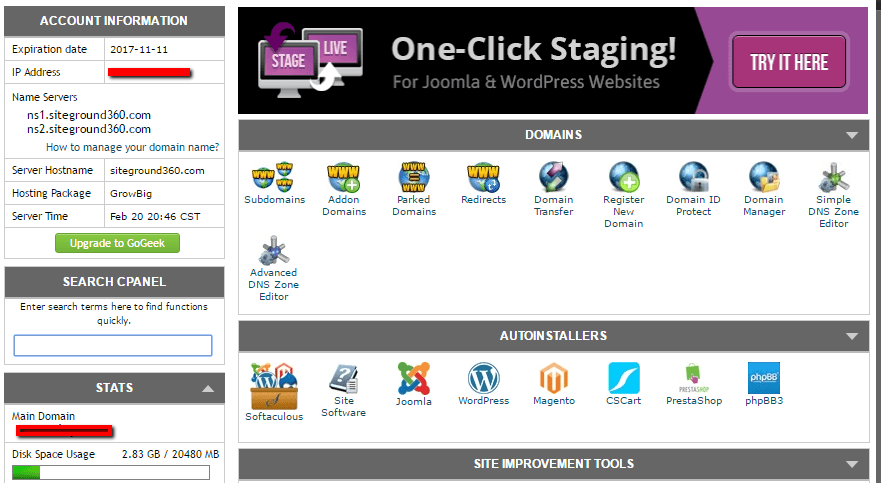
Within your cPanel interface, your host should grant access to one or more autoinstallers. These autoinstallers enable answering the question of how to install WordPress on cPanel, as their designation connotes that they simplify the process.
Essentially, autoinstallers automate the complete WordPress installation process outlined in the subsequent section. Hence, instead of executing all tasks manually, you merely input basic information, click a button, and the autoinstaller installs WordPress on your behalf.
Several variations of autoinstallers may be encountered. The following are some of the most prevalent WordPress autoinstallers:
- Softaculous
- Fantastico
- QuickInstall
- MOJO Marketplace
In certain instances, your host might additionally offer a proprietary WordPress installer tool, presenting another method of installing WordPress on cPanel.
Although minor interface discrepancies may exist, all autoinstallers operate similarly. I shall illustrate using Softaculous as an example, to underscore the process of installing WordPress on cPanel. Nonetheless, the specific interface for your chosen autoinstaller may feature slight variations.
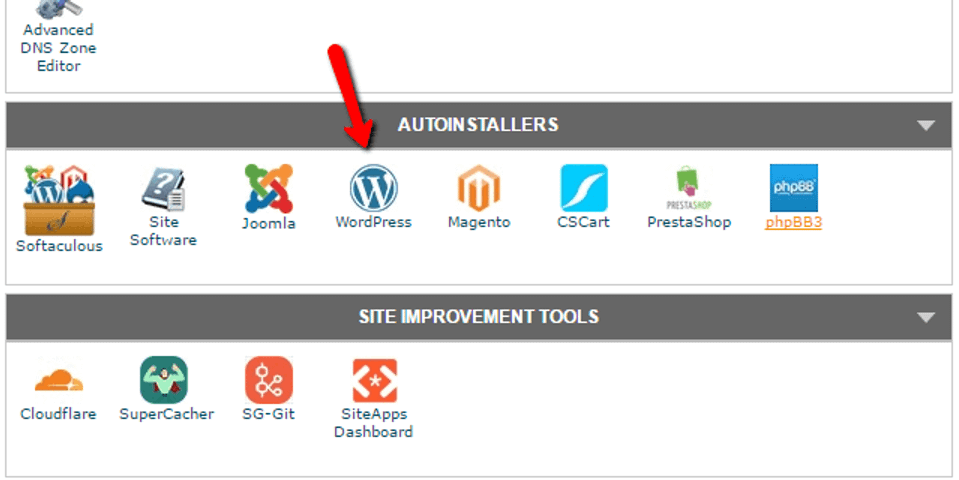
To commence, locate the link to the WordPress autoinstaller in cPanel and click on it:
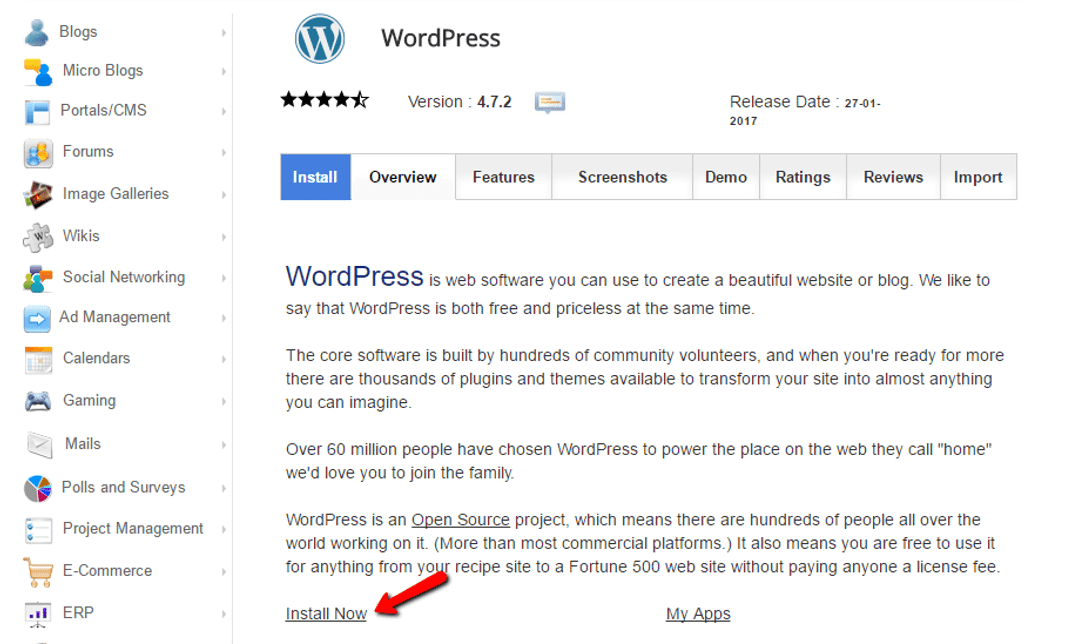
On the subsequent screen, locate the Install Now link (irrespective of the specific autoinstaller in use) and proceed by clicking it:
Following this, you will have to input details for your WordPress installation. Once again, the appearance of this interface should remain consistent regardless of the autoinstaller you use.
To begin, input the protocol and domain name where you wish to set up WordPress:
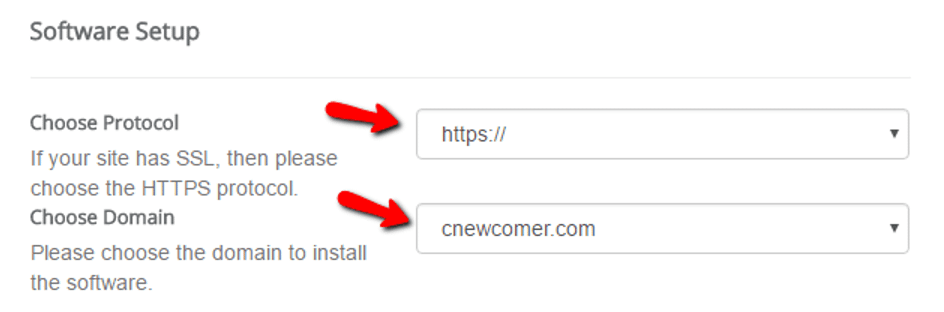
For the Protocol, in case you are using an SSL certificate, you should opt for HTTPS. Otherwise, select HTTP. Unless you purposefully deployed an SSL Certificate, the default is HTTP.
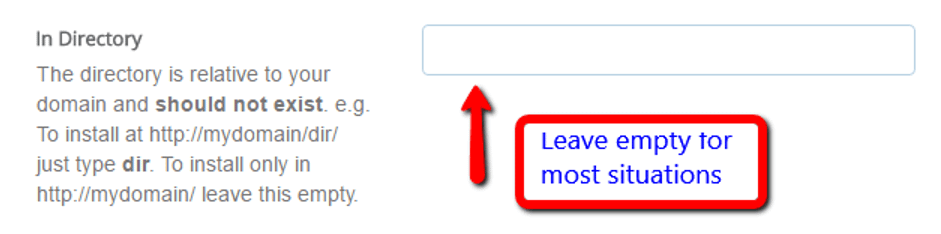
Subsequently, select the directory to install WordPress. For 99% of circumstances, it is recommendable to leave this field blank. Leaving it vacant means that WordPress will be installed in your primary domain. Meaning, that if your domain is YOURDOMAIN.com, then WordPress will be installed at YOURDOMAIN.com rather than something like YOURDOMAIN.com/mywpsite.
Near the bottom, you will be required to insert your Site Settings. These are merely the standard values for your site’s name and description. You have the option to modify them later in the WordPress interface:
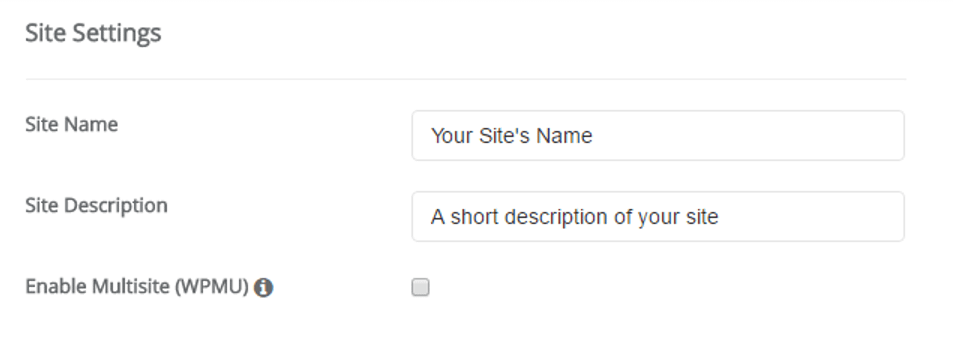
Do not activate WordPress multisite unless your intention is specifically to establish a multisite network.
You will also need to generate login credentials for your WordPress account. You will utilize this username/password combination to sign into your WordPress dashboard post-installation, so make sure to remember it:
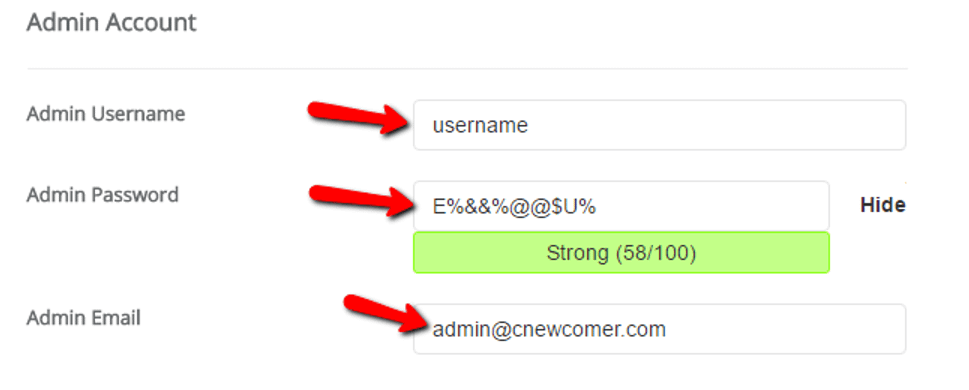
Depending on the specific autoinstaller you are using, you might observe a few other choices as well. It is safe to disregard these. In other words, it is acceptable to retain anything I did not address as the default.
After completing all the fields, be sure to tap Install found at the bottom of the screen. This process might take a minute or so. You will then receive a confirmation, and that concludes the process. You have accomplished the installation of WordPress on cPanel using an autoinstaller. You can now sign into your new WordPress site by visitingYOURDOMAIN.com/wp-admin.
Method #3: How to install WordPress manually
Personally, I no longer perceive a necessity to utilize this manual process due to how straightforward and prevalent the aforementioned autoinstallers are. Almost every web host will provide some form of tool that enables you to install WordPress from your hosting dashboard.
However, if you wish to learn how to install WordPress manually, continue reading. If you are a novice, simply use the aforementioned autoinstaller process.
To execute the renowned WordPress 5-minute installation, you will require an FTP program for file uploads. I employ FileZilla, but there are several high-quality free FTP programs available. If you are unsure about FTP or how to utilize it, that probably signifies that you should use a WordPress autoinstaller.
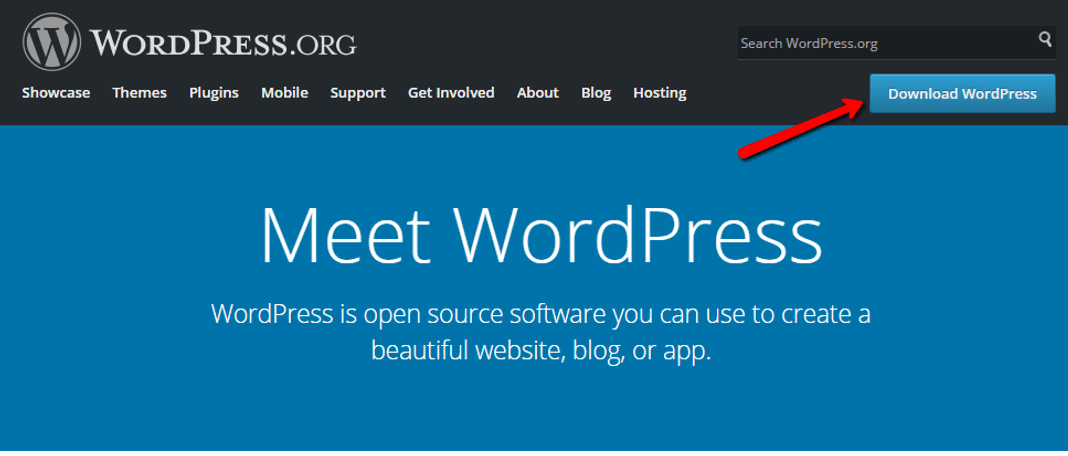
Commence by downloading the latest version of WordPress from wordpress.org:
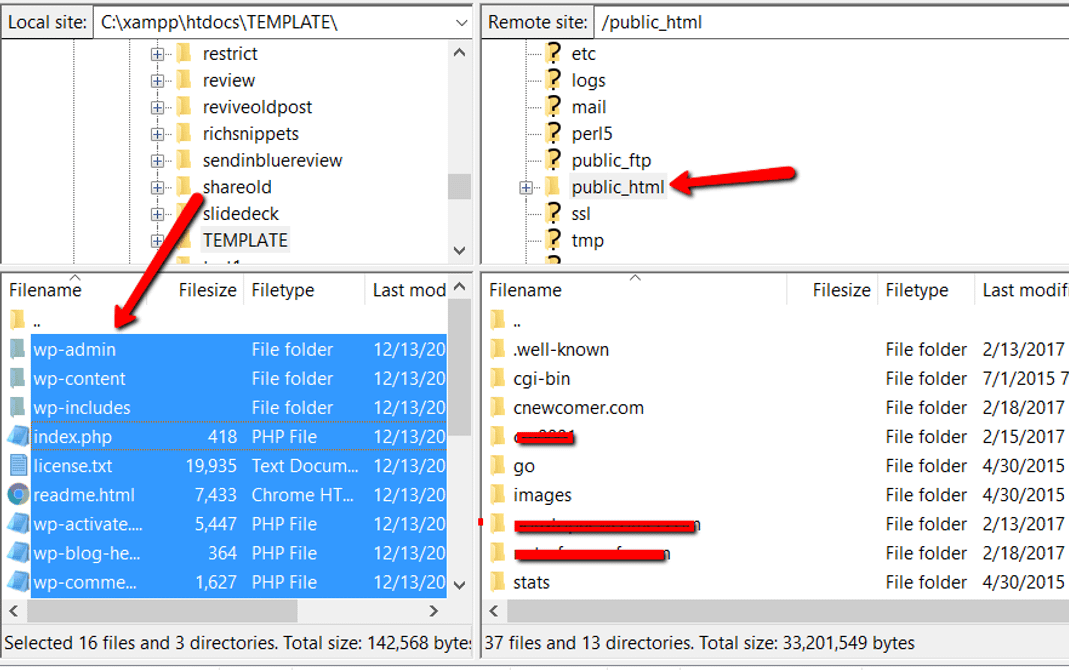
Then, unzip the file and upload it to the public_html (or similar) directory of your website. If you are unsure about logging in to FTP, request your host for your FTP account information:
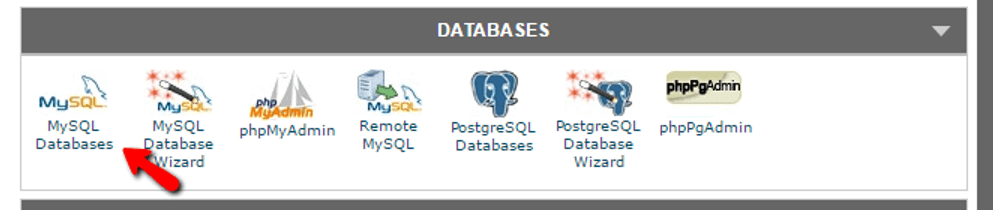
While this is in progress, proceed to your cPanel account and locate the MySQL Databases option:
When beginning, you may spot an opportunity to Generate a Fresh Database. Input a name for your database and tap Create Database:
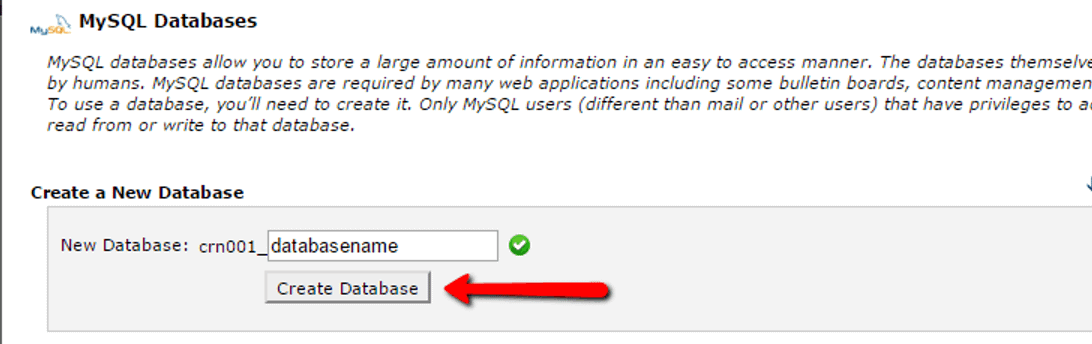
Your database name is flexible, just be sure to recall it for later use.
Following this, it’s time to establish a user for the database. On the same page, scroll to MySQL Users and make a new user:
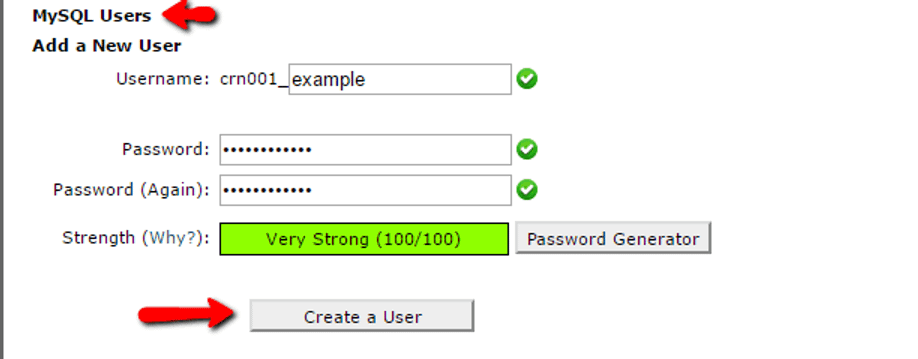
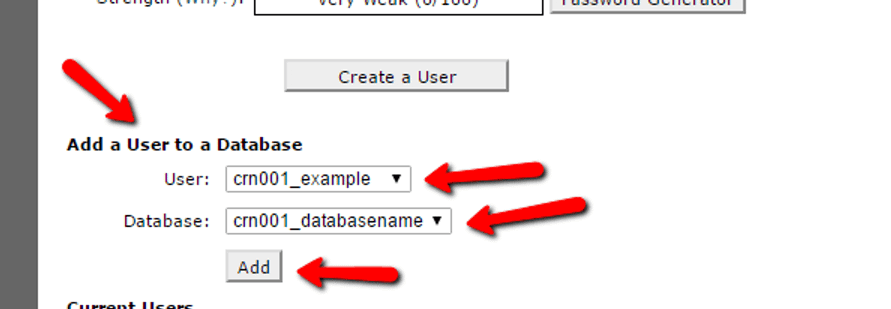
After creating the user, ensure to grant it access to the database you just made:
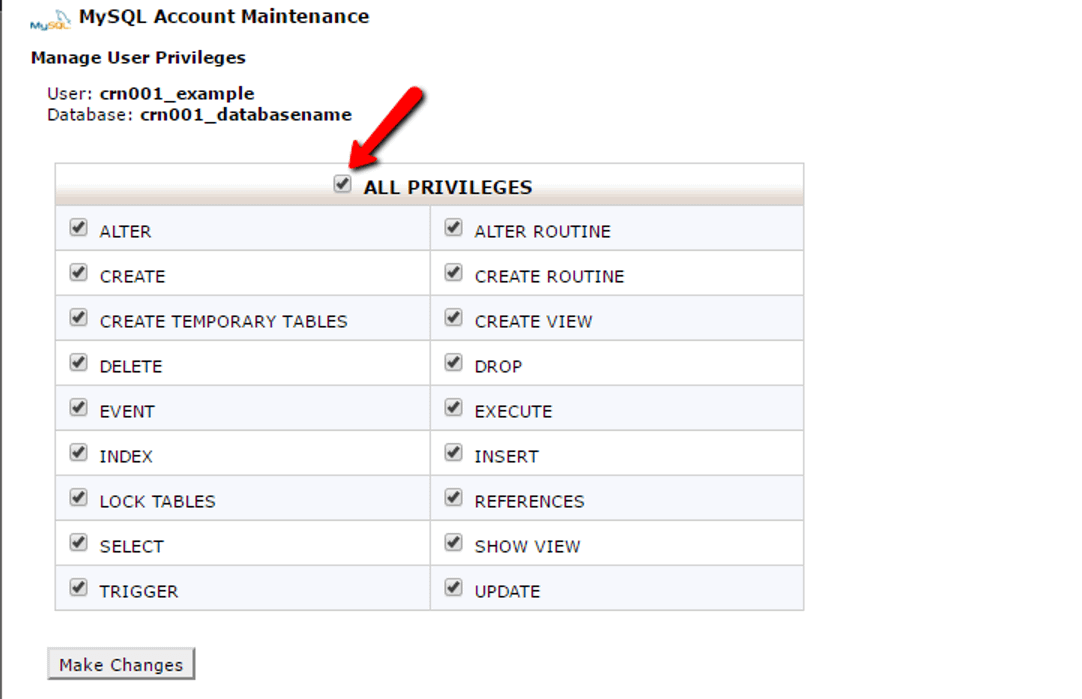
On the next page, also ensure to bestow that username All Privileges:
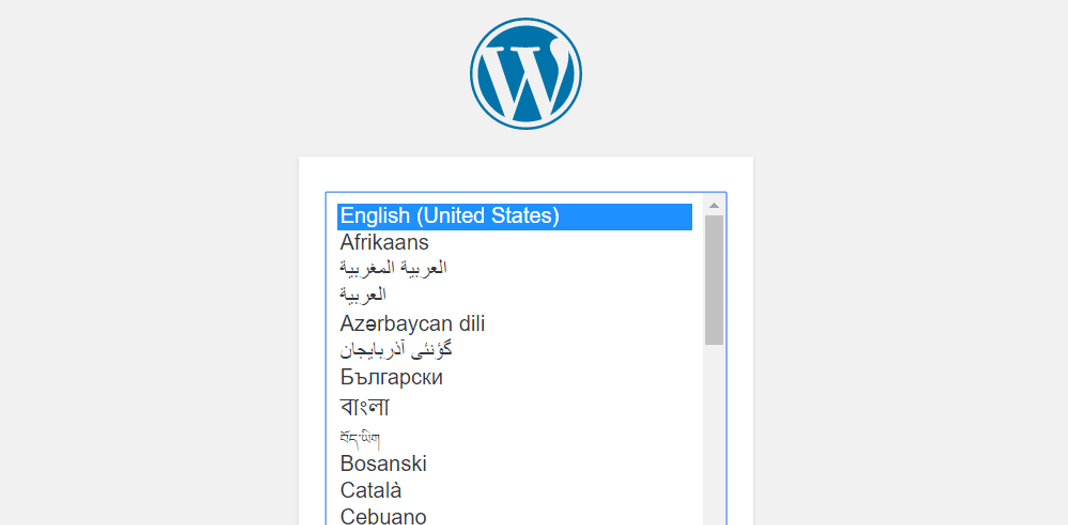
Upon completion of the FTP transfer, head to your domain name to finalize the installation process. Your domain should display the WordPress installation wizard. Initially, you must select your preferred language:
Later, ensure you have the particulars for your database name, user, and password ready. Input them when requested:
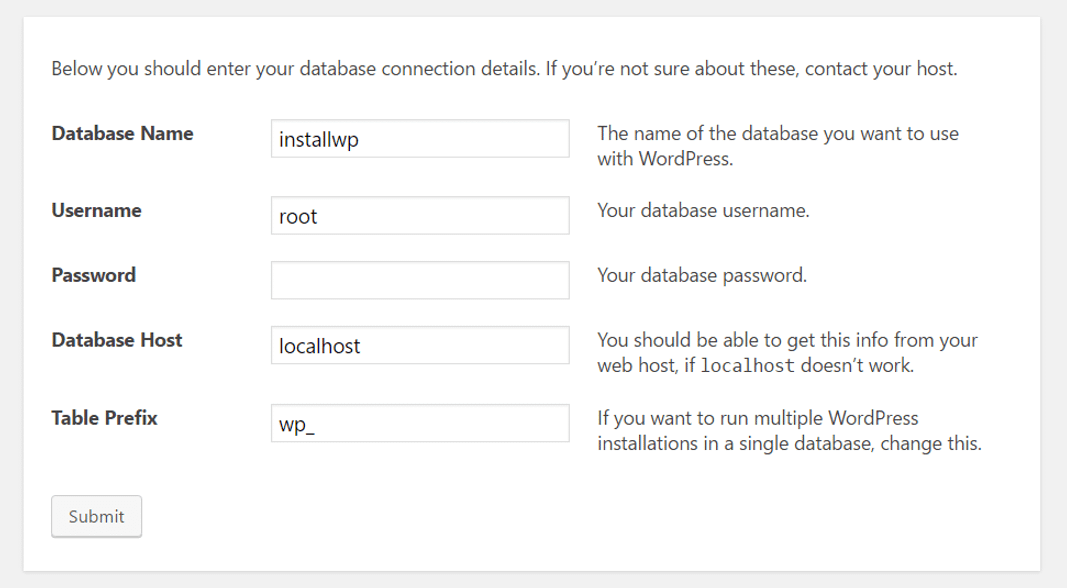
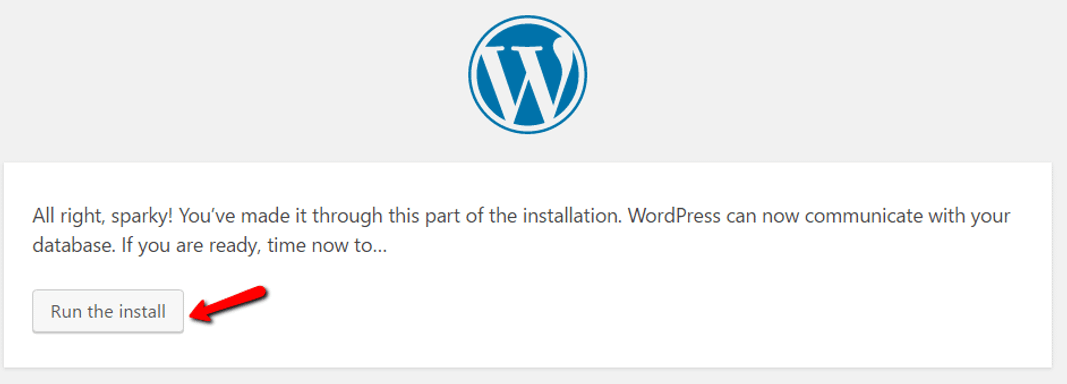
If all goes smoothly, you can now execute the WordPress install:
Give your WordPress site a title and input the necessary details to generate your admin account:
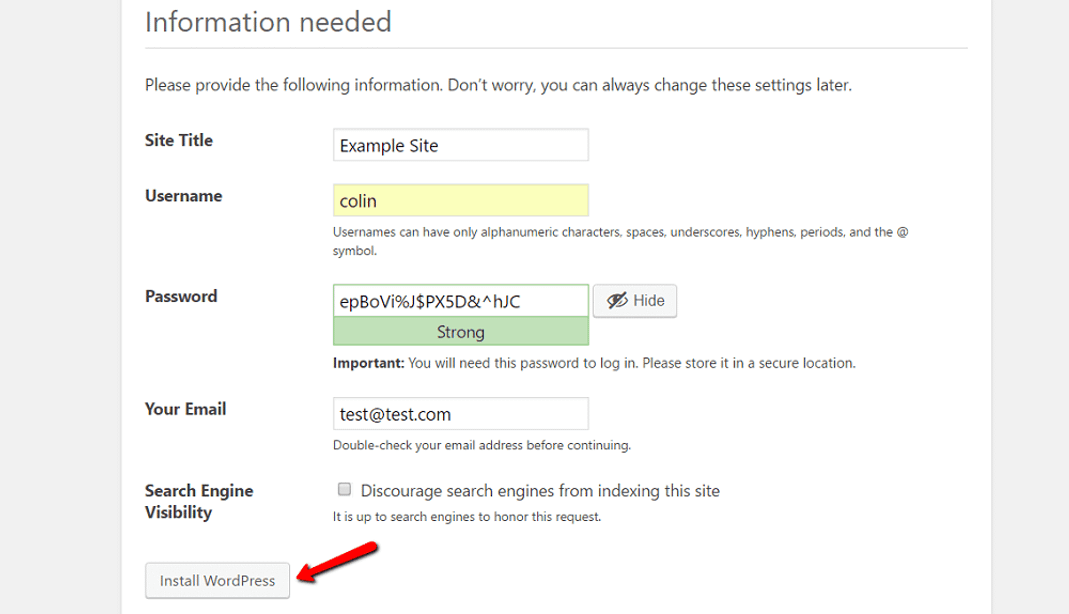
Next, click Install WordPress.
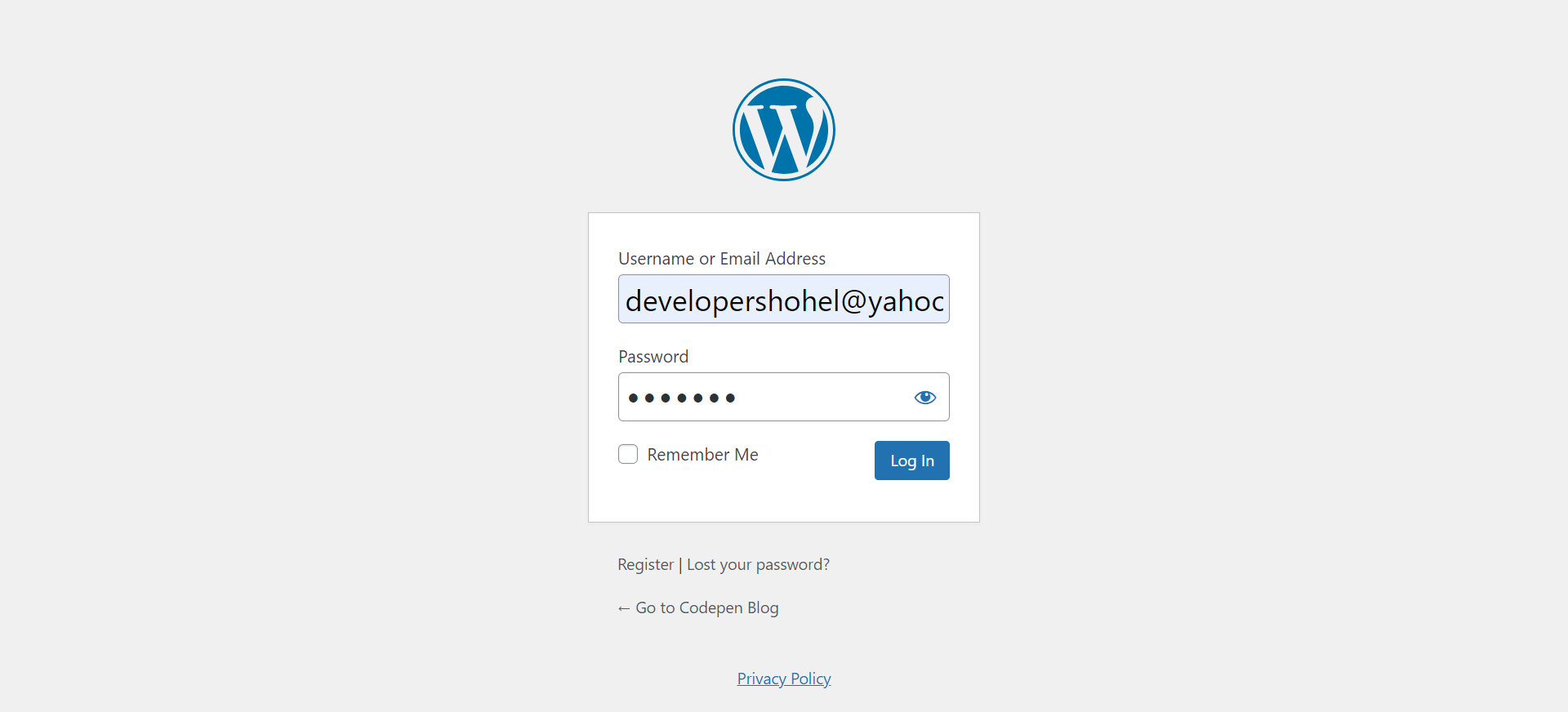
That’s it! You’ve just acquired knowledge about installing WordPress manually in a mere five minutes. You are now able to access the account details you used during the installation process:
Install WordPress today and create your site
Once more, for beginners, it’s recommended to utilize the autoinstaller provided by your host (should be available). It’s simple, fast, and no different than manual WordPress installation. Alternatively, opt for a host that comes with pre-installed WordPress.
If you have a desire to understand how to install WordPress manually solely for the sake of it, go ahead and attempt it. However, it’s guaranteed that after manually installing WordPress for the hundredth time, you’ll become a dedicated fan of autoinstallers!
…
As always, feel free to inquire if you encounter any challenges during the WordPress installation. We’re here to assist.

10 comments
[…] 11 WordPress Mobile Plugin for Optimal Usage in 202… Complete Beginner’s Guide: How to Install WordPre… Step-by-step Guide: Crafting a Product Catalog in […]
[…] than web hosting, you will require fundamental knowledge of installing WordPress and modifying files using […]
[…] you are new to WordPress then read our article COMPLETE BEGINNER’S GUIDE: HOW TO INSTALL WORDPRESS EASILY also learn THE ULTIMATE GUIDE TO SELF-HOSTED WORDPRESS […]
[…] be the game-changer that sets apart a casual click from a meaningful conversion. If your website is built on WordPress, consider yourself fortunate. With an array of robust plugins at your disposal, seamlessly […]
[…] If you require assistance in setting up your website, follow our detailed guide on how to install a WordPress website. […]
[…] Free Tips Two: Complete Beginner’s Guide: How To Install WordPress Easily […]
[…] Additional Tips: Complete Beginner’s Guide: How To Install WordPress Easily […]
[…] Free Tips One: Complete Beginner’s Guide: How To Install WordPress Easily […]
[…] Free Tips One: Complete Beginner’s Guide: How To Install WordPress Easily […]
[…] conclusion, Google Trends is a versatile tool that can enhance your WordPress website’s SEO and contribute to your business’s growth. By leveraging its features to uncover search volume […]