


Do you want to backup WordPress site? Our Ultimate Guide simplifies backup WordPress site to ensure your website’s data is safe and secure. Protect your hard work effortlessly.
Backing up your WordPress site is crucial for safeguarding your valuable content and ensuring the smooth operation of your website. While many opt for the simplicity of using plugins to automate the process, seasoned WordPress users often prefer the manual approach through cPanel to have greater control over their backups.
Why Consider Manual WordPress Site Backups via cPanel?
For beginners, utilizing a plugin to automate WordPress backups is the most straightforward option. However, those well-versed in WordPress may be curious about how to perform manual backups via cPanel. This method involves logging into your cPanel hosting account and manually creating backups, with the frequency determined by your website’s size and complexity. This could be as frequent as hourly, daily, or weekly, depending on your needs.
Nonetheless, exercising caution is paramount when pursuing manual backups through cPanel. Any direct access or editing of site files carries inherent risks; a minor mistake can potentially disrupt your site. Additionally, frequent manual backups can be time-intensive.
Yet, there are compelling advantages to this method. Some users prefer manual backups as a preliminary step before relying on alternative methods like plugins, as it allows them to ensure the process’s accuracy. Moreover, manual backups offer precise control over the procedure. You have the flexibility to choose between comprehensive full backups or partial backups focusing on your site’s most critical files. You can also specify the precise storage location for your backups.
How to Manually Backup a WordPress Site via cPanel
The process of manually backing up a WordPress site via cPanel may vary depending on your hosting provider’s configuration. Generally, cPanel offers two primary methods: the cPanel Backup Manager and the cPanel Backup Wizard.
Using the cPanel Backup Manager:
1. Begin by logging into your cPanel dashboard.
2. Locate the cPanel Backup Manager tool, typically accessible through the following path: Files > Backup.
From there, you can follow the steps provided by the cPanel Backup Manager to create a backup of your WordPress site.
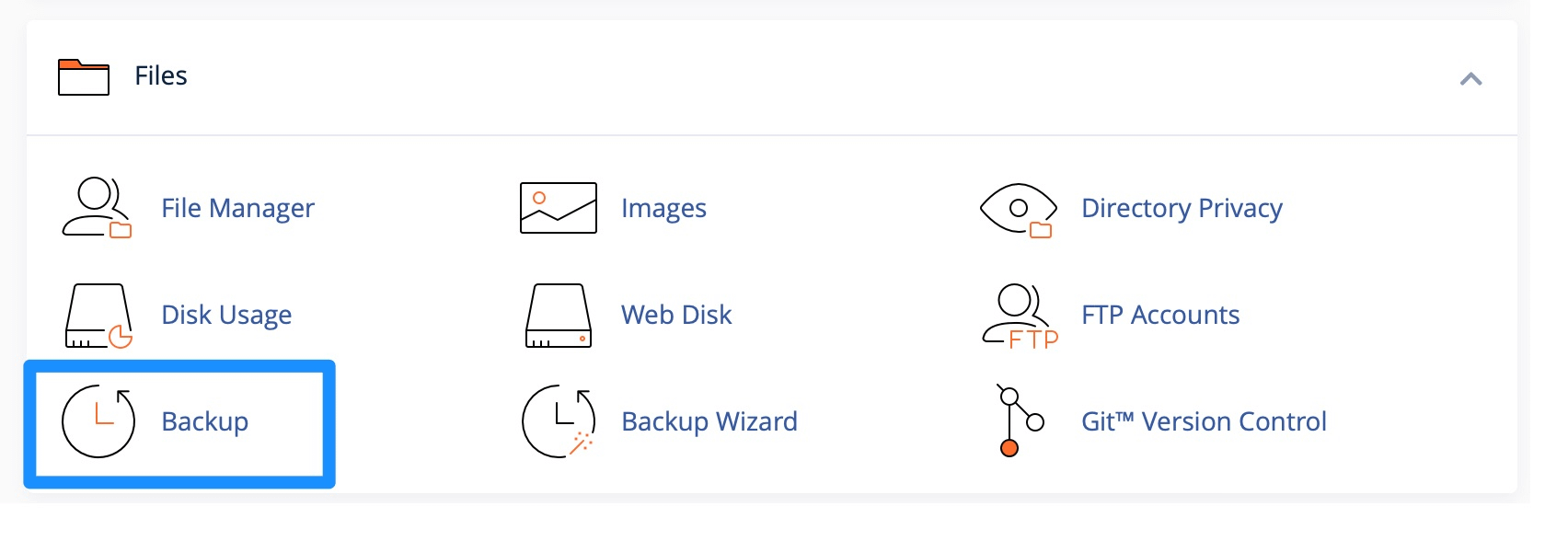
On the Backup page, you can pick what kind of backup you want to make. Click on Download a Full Account Backup.
Now, make sure the Home Directory is selected as the Backup Destination:
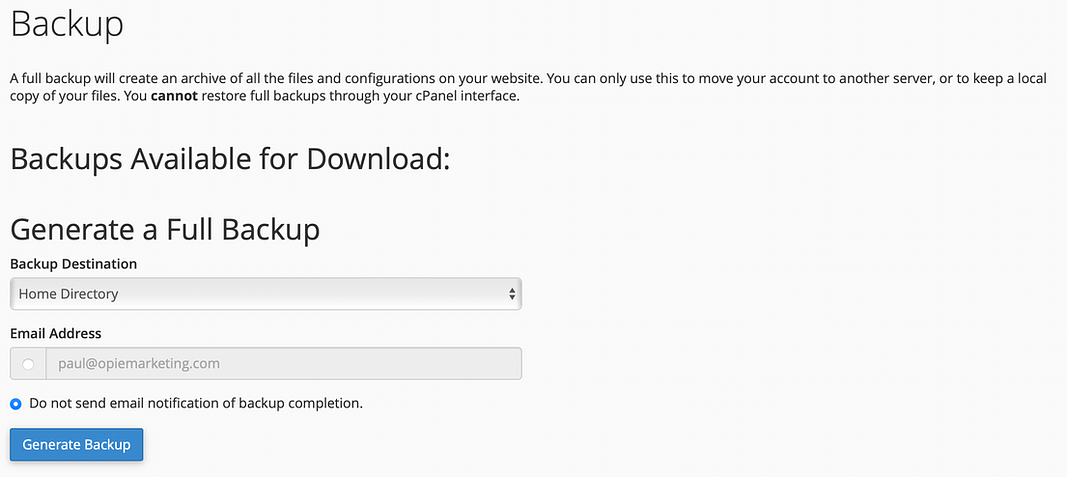
If you desire to be notified via email once the backup process is complete, simply input your email address. Afterward, proceed to click on the “Generate Backup” button.
Please be patient, as the backup operation may require some time to finish. Once it’s done, locate the backup file in your /home directory, and proceed to download it via cPanel.
Finally, it’s essential to ensure the security of your backup by storing it in a safe location. It’s advisable to maintain a separation between your live website and the backup, so consider saving it either on your local computer or a remote cloud server for added protection.
How to backup WordPress site with cPanel Backup Wizard
Although the Backup Manager is the most common route, you can also backup WordPress site from cPanel using the Backup Wizard. This tool is a good option for beginners since it takes you through the process step-by-step.
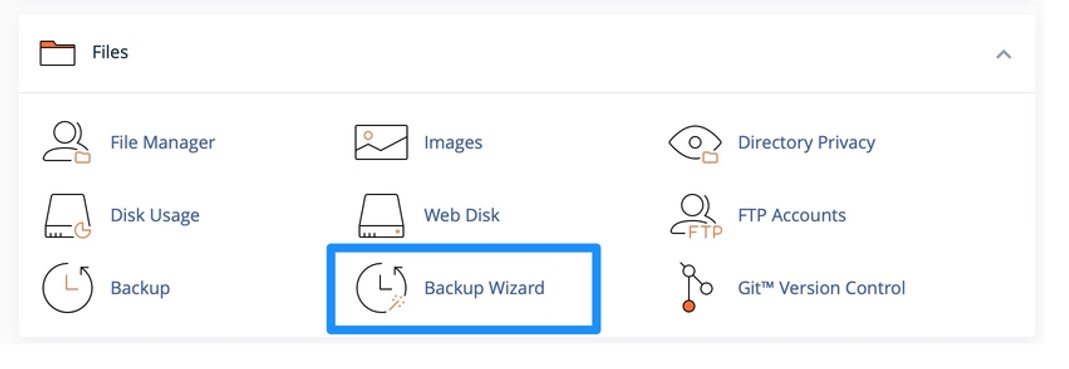
To access the Backup Wizard, log into cPanel. Scroll down to the Files section and select Backup Wizard:
Now, to download a compressed copy of your website files, click on Back Up:
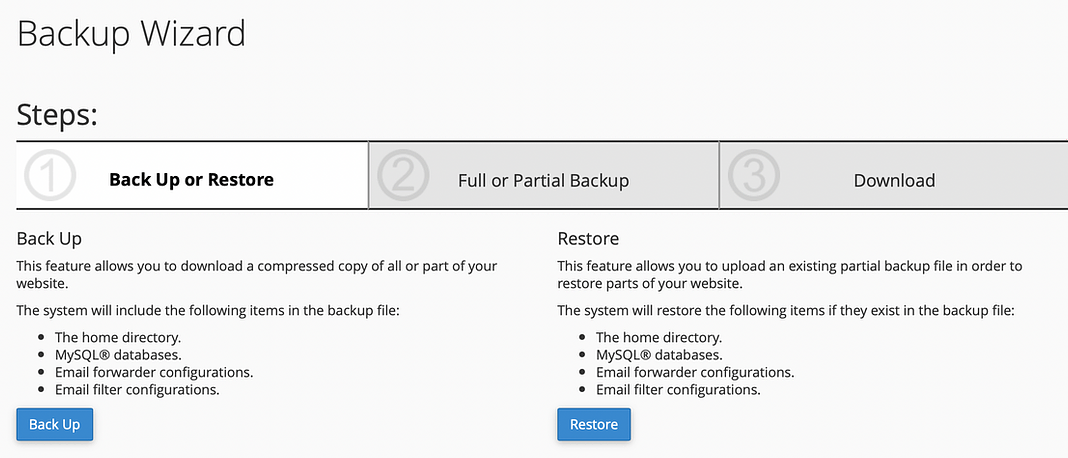
Here, you can choose what type of backup you want to make. If you want a copy of all files and configurations on your website, select Full Backup.
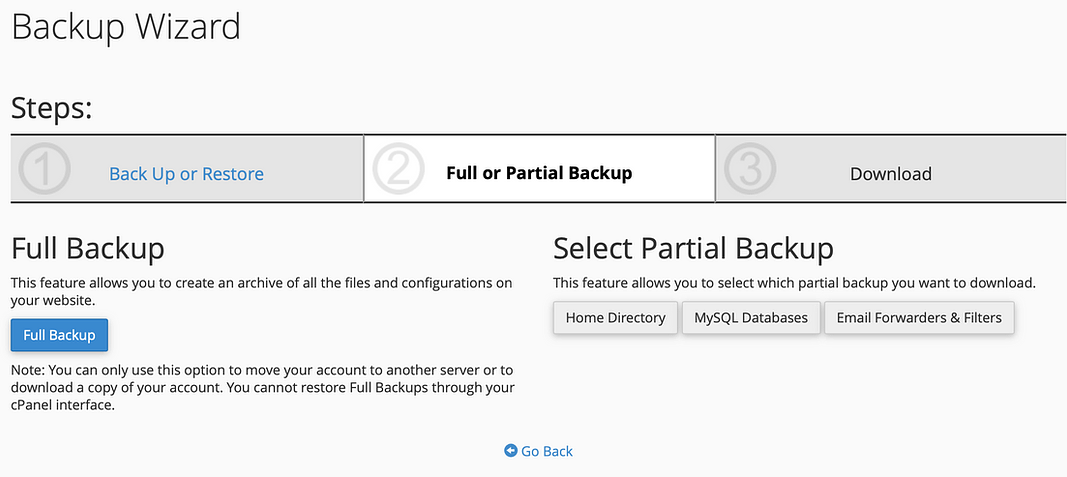
Nevertheless, it is possible to generate a partial backup of your MySQL database, email data, or Home Directory. Similar to previous steps, you will need to designate the backup’s destination. Unless you intend to send the backup directly to a secure or remote server, you can keep the destination set as the Home Directory. Finally, click the “Generate Backup” button to conclude the process.
In Conclusion
For seasoned WordPress users, manual site backups can prove advantageous on occasion. You may wish to create a partial backup, preserve data from a specific time point, or simply verify the backup process’s reliability.
The good news is that performing a WordPress site backup from cPanel is generally straightforward. While the specific steps may vary depending on your web hosting provider, the core process remains consistent. To begin, access your cPanel dashboard, and from there, you can generate a backup of your site files and subsequently download them to your computer.
However, for the majority of WordPress users, employing a dedicated WordPress backup plugin like UpdraftPlus often offers a more user-friendly and efficient solution. Uncover valuable insights with the “Top 10 Best WordPress Backup Plugins of 2024”
Should you have any inquiries or require further clarification on the process of backing up a WordPress site from cPanel, please feel free to share them in the comments section below. We’re here to assist!

1 comment
[…] You can also activate the multisite feature on an existing WordPress site. Before enabling multisite, don’t overlook creating a full backup of your WordPress site. […]