

Learn 4 simple and free methods to backup WordPress site effortlessly. Ensure your WordPress backup is secure and easily accessible.
Preserving your website’s data is paramount, whether you’re concerned about technical mishaps or hacking threats. Fortunately, with WordPress, safeguarding your website is a straightforward process that won’t cost you a dime. You can achieve this by employing a reliable plugin that streamlines the backup process into just a few simple steps. This article will guide you through securing your WordPress site for free using a plugin like UpdraftPlus.
What is a Website Backup?
A website backup is essentially a copy of all the data and files that make up your website, stored securely in a different location. It acts as a safety net, ensuring that if something goes wrong with your website—whether due to hacking, server issues, accidental deletion, or other unforeseen problems—you can quickly restore your site to its previous state. This concept is similar to how you might back up important documents or photos on your computer, only in this case, the focus is on safeguarding your website.
Why is Website Backup Important?
In today’s digital age, websites play a critical role for businesses, bloggers, and organizations alike. They serve as the online face of brands, a channel for communication, and a platform for various transactions. Given the significance of websites, safeguarding them against potential risks and threats becomes imperative. One of the most effective ways to protect your website is through regular backups. Here’s why website backups are essential.
Protection Against Cyber Threats
The internet is rife with cyber threats, including hacking attempts, malware, ransomware, and more. Even with strong security measures in place, no website is entirely immune to these dangers. Cybercriminals often target websites to steal data, deface content, or distribute malware to visitors. In the event of a successful attack, a backup can quickly restore the website to its pre-attack state, minimizing damage and downtime. Without a backup, the recovery process can be lengthy, complex, and costly, potentially leading to loss of customer trust and revenue.
Safeguarding Against Human Errors
Human errors are another common cause of website issues. Whether it’s accidentally deleting critical files, misconfiguring a plugin, or making a coding error, mistakes can happen. These errors can lead to broken functionalities, lost content, or even complete website failure. Having a recent backup ensures that any such issues can be quickly corrected by reverting to the last stable version of the site, thus maintaining continuity and avoiding prolonged downtime.
Protection from Hardware and Server Failures
Websites are hosted on servers that, like any hardware, are susceptible to failures. Hard drives can crash, power failures can occur, and data can become corrupted. Although many hosting providers implement their own backup solutions, these are not always foolproof or up-to-date. Relying solely on your hosting provider’s backup without maintaining your own can be risky. Having an independent backup ensures that you are prepared for any hardware malfunctions or server issues that may arise.
Easy Recovery from Website Crashes
Websites can crash for various reasons, including software conflicts, updates gone wrong, or traffic surges that overwhelm the server. Crashes can result in lost data and extended downtime, both of which can harm your website’s reputation and user experience. With a proper backup strategy, you can quickly restore your site, reducing downtime and getting back to normal operations swiftly. This not only saves time but also ensures that your users experience minimal disruption.
Compliance and Legal Obligations
For businesses that collect and store customer data, maintaining backups is often a legal and regulatory requirement. Data loss, whether through cyberattacks or accidental deletion, can lead to significant legal consequences, including fines and lawsuits. Regular website backups help ensure compliance with data protection regulations and provide a reliable means of restoring data in case of loss. This not only protects your business legally but also helps maintain customer trust and confidence.
Peace of Mind
Knowing that you have a reliable backup provides peace of mind. Running a website involves various tasks, from content creation to marketing, customer service, and more. The last thing you want is to worry about potential data loss or cyber threats. Regular backups free you from this concern, allowing you to focus on growing and improving your website rather than fearing potential catastrophes.
Website backups are not just a technical necessity; they are a crucial component of a comprehensive website management strategy. They protect against cyber threats, human errors, hardware failures, and legal risks. By regularly backing up your website, you ensure that you can quickly recover from any setbacks, maintain continuity, and safeguard your online presence. In essence, a good backup strategy is an investment in the security and longevity of your website
How to Backup WordPress Site for Free
Now that you understand the importance of backing up your WordPress site, let’s delve into the process of doing it for free in three simple steps.
Method 1: WordPress Backup Using a WordPress Backup Plugin (Recommended)
Step 1: Install a Free Backup Plugin
Begin by installing a free backup plugin. WordPress offers a plethora of security plugins that encompass various functionalities, from malware scanning to comprehensive backups. When selecting a backup plugin, consider the following factors:
- Backup Type: Ensure the chosen plugin allows you to create full backups, as partial backups may not suffice for a complete site restoration.
- Storage Options and Limits: Opt for a WordPress backup plugin that permits you to save backups remotely in storage locations like Google Drive or Dropbox. Storing backups solely on your site’s server won’t be helpful if the server goes down. Check for any storage limits.
- Ease of Use: Assess the plugin’s usability, especially if you’re a beginner. A user-friendly interface will simplify the backup and restoration processes.
One highly recommended option is UpdraftPlus. Its free version offers comprehensive backup capabilities, making it an excellent choice for those seeking to backup their WordPress site for free. UpdraftPlus enables manual or scheduled backups and supports various remote storage options. Its intuitive interface makes both backup creation and restoration a breeze.
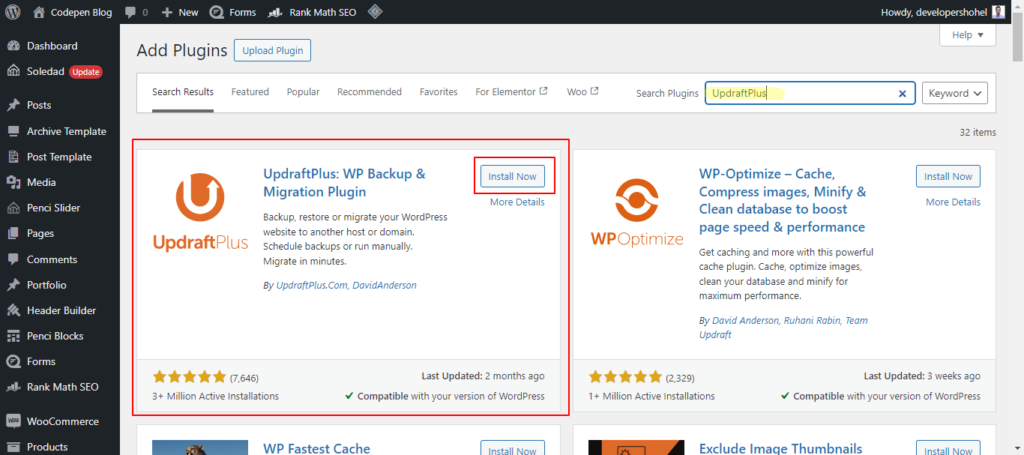
To get started with UpdraftPlus, navigate to your WordPress dashboard, go to “Plugins” > “Add New” and search for “UpdraftPlus.” Click “Install Now” and then “Activate.”
Step 2: Configure Your Free WordPress Backup Plugin
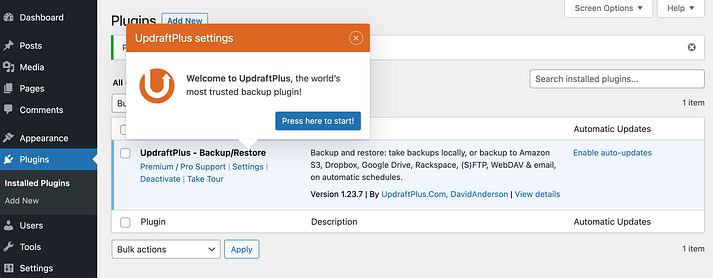
After installing and activating the plugin, configure your backup settings. You’ll encounter a popup if you’d like a quick tour; otherwise, go to “Settings” > “UpdraftPlus Backups” in your left-hand menu.
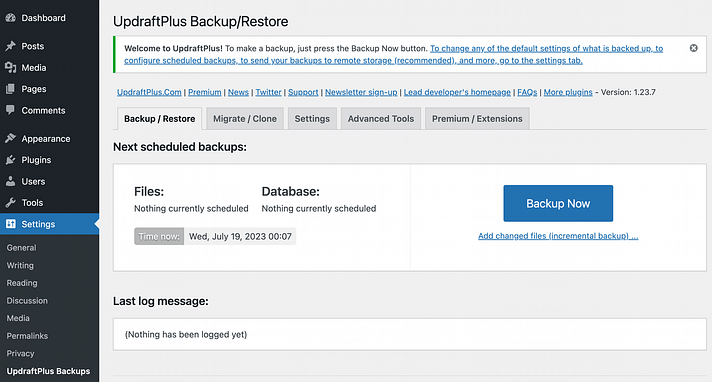
Click the “Backup Now” button to create your first backup. However, it will generate a manual backup using UpdraftPlus’ default settings. It’s advisable to customize your backup preferences. Click on the “Settings” tab to proceed.
Configure your Files backup schedule and the number of backups to retain. Typically, one daily backup is sufficient for most websites. Align your Database backup schedule with your File backup for consistency.
Ensure that you select a remote storage location, such as Google Drive or Dropbox, and complete the necessary configurations for your chosen option. You can also customize which files are included in the backup. When satisfied with your selections, click “Save Changes”
Step 3: Restore Your Free Backup
With your backups configured, the final step is learning how to restore them, should the need arise. Restoring backups with UpdraftPlus is straightforward. Navigate to “Settings” > “UpdraftPlus Backups” > “Backup / Restore” Scroll down to the “Existing backups” section, where you’ll find your stored backups.
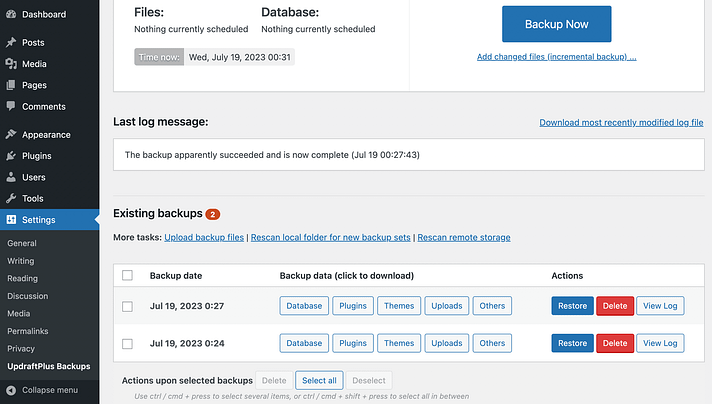
Locate the backup you wish to use and click “Restore.”
This action initiates the restoration wizard, allowing you to select specific files and databases to restore and choose the restoration destination. Once you’ve made your selections, click “Restore.”
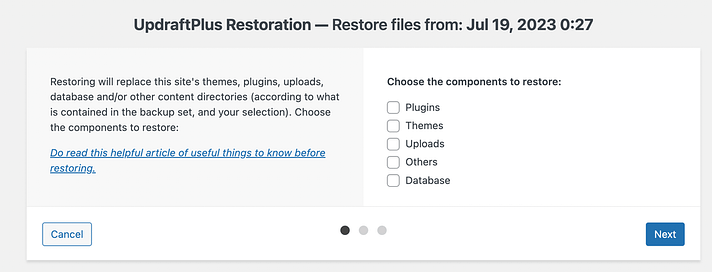
Just check the boxes to make your selections. After that, click on Next. You should see the following page:
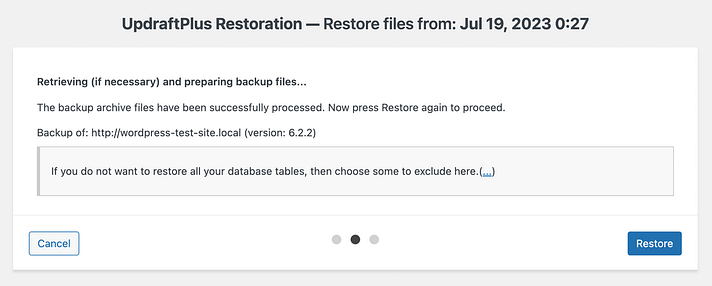
Now all that’s left is to click on Restore! If the restoration is successful, you will see something similar to the following:
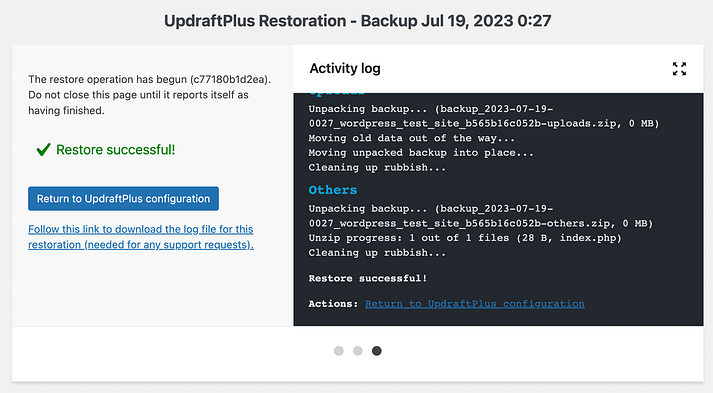
That’s it! Go ahead and hit Return to UpdraftPlus Configuration and your site should be good as new.
If you aren’t able to access the backend of your WordPress installation, and you’ve had to create a new one, simply install UpdraftPlus again and go to Settings > UpdraftPlus Backups > Existing backups:
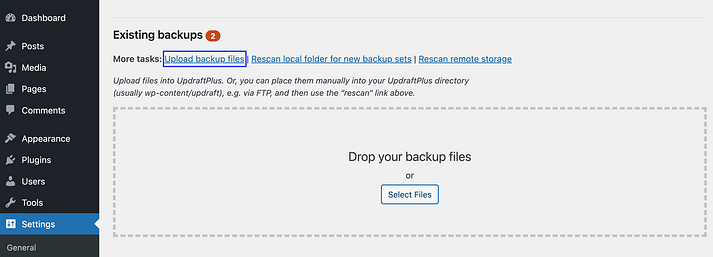
That’s it! You’re now well-equipped to backup your WordPress site for free. By following these three simple steps, you can ensure the safety and security of your website and its valuable data. Don’t wait for a disaster to strike—start backing up your WordPress site today!
Method 2: Manual Backup Using cPanel
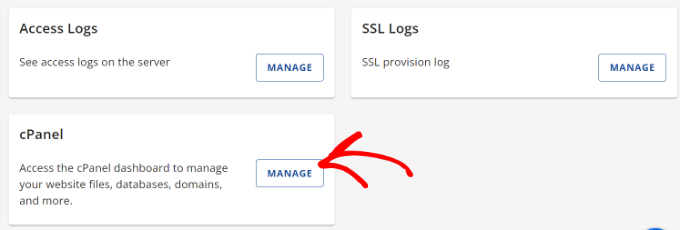
Step 1: Log in to cPanel
To begin, log in to your hosting provider’s cPanel. For Bluehost users, this can be found under your site’s “Advanced” settings.
Step 2: Open File Manager
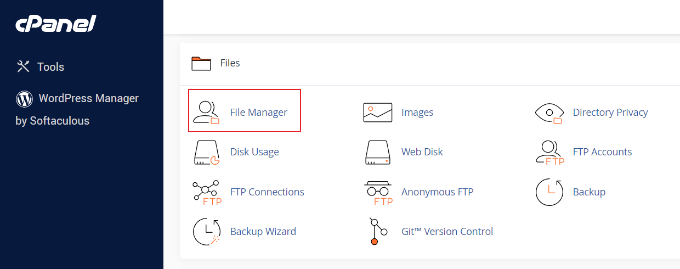
Once you’re inside cPanel, navigate to the “Files” section and click on the File Manager option. This will open the file manager in a new tab or window.
Step 3: Navigate to the public_html Folder
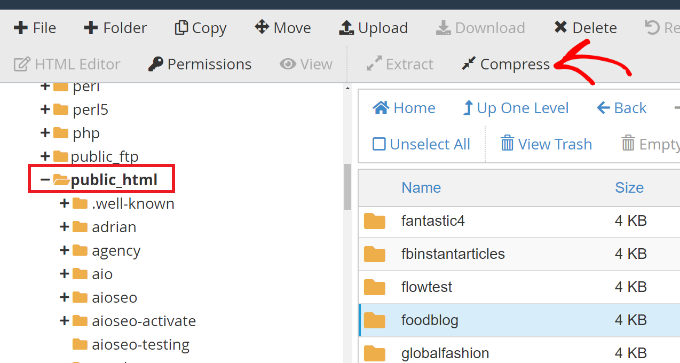
On the left side menu of the file manager, locate the public_html folder and click the ‘+’ button to expand it.
Step 4: Compress Website Files
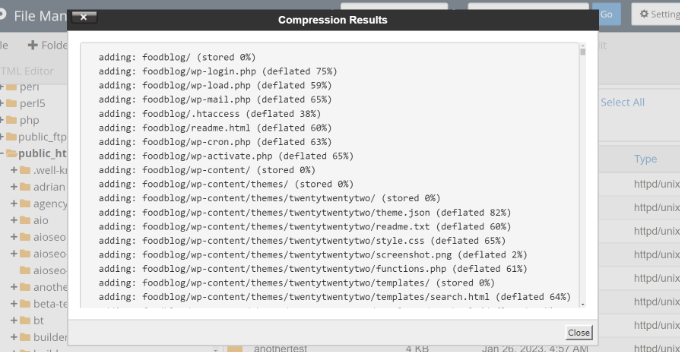
In the expanded public_html folder, find the folder with your website name. Once selected, click the Compress option at the top. A pop-up window will appear, where you should select Zip Archive and then click Compress Files.

Step 5: Download the Compressed File
After the files are compressed, a summary of the compression will appear. Click Close.
Now, locate the newly created zip file in the public_html folder, select it, and click Download at the top. Save this compressed file in a secure location as a backup.
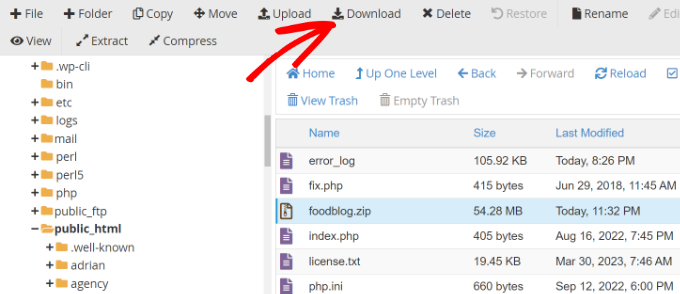
Now, whenever your site experiences issues, you can use this zip file to restore your content.
You can also back up your WordPress databases using cPanel. While this process takes more time because you’ll need to import tables manually, it’s an important step for a complete backup.
Step 6: Access phpMyAdmin in cPanel
Log in to cPanel and navigate to the phpMyAdmin option.
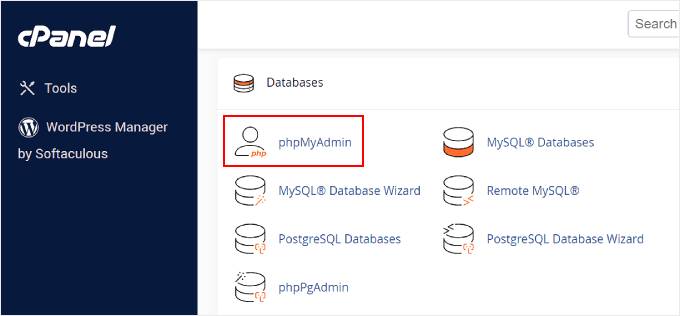
Step 2: Select Your Database
In phpMyAdmin, select your WordPress database from the left menu.
Step 3: Export Your Database Tables
Choose the tables you want to back up, then click the Export button at the top. On the next screen, leave the Export method as Quick and select SQL as the format. Once selected, click Go to download the SQL file.
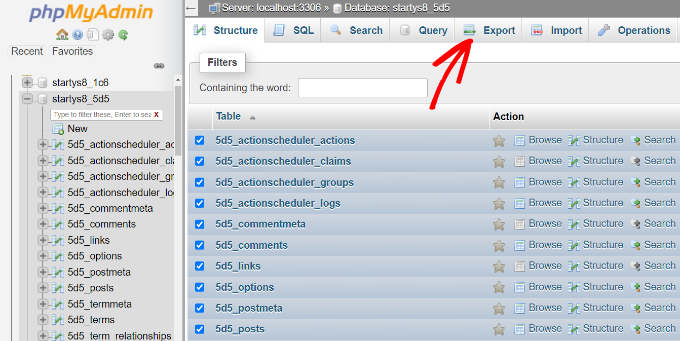
Save this file securely. To restore your database, you can import the SQL file back into phpMyAdmin.
Method 3: Manual Backup Using FTP
If you prefer not to use cPanel or a backup plugin, you can manually back up your WordPress site using an FTP client. For this example, we’ll use FileZilla, but other FTP clients work similarly.
Step 1: Connect to Your Site via FTP
Use your FTP credentials to connect to your website. You can refer to our guide on FTP for more details.
Step 2: Navigate to the Root Directory
In the FTP panel, navigate to your website’s root directory, where you’ll see folders like wp-content, wp-admin, and important files such as wp-config and .htaccess.
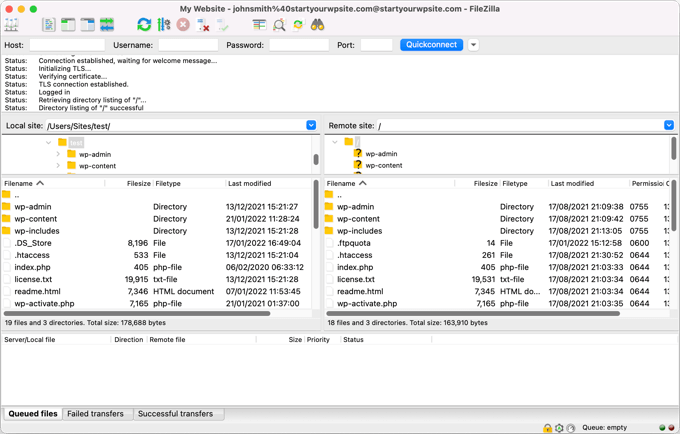
Step 3: Download Files and Folders
Right-click on any file or folder you wish to back up, then select Download. Save the files to your local computer or external storage. This creates a backup of your live site, which can be restored by re-uploading the files using an FTP client.
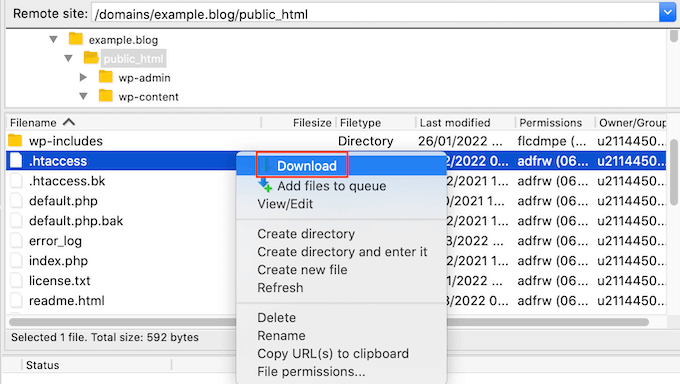
Follow Method 1 to backup the database or follow Method 2 Step 6 to backup the database
Method 4: How to Restore WordPress Site from Backup
Now that you’ve backed up your website, let’s discuss how to restore it in case of a critical error or security issue.
Restoring a WordPress site from a backup using Hostinger’s File Manager involves a few steps. Here’s a detailed guide:
Prerequisites:
- You have a backup of your WordPress files and database.
- Access to Hostinger’s File Manager.
- Access to phpMyAdmin (for database restoration).
Steps to Restore Your WordPress Site:
Step 1. Access Hostinger Control Panel
- Log in to your Hostinger account and click manage
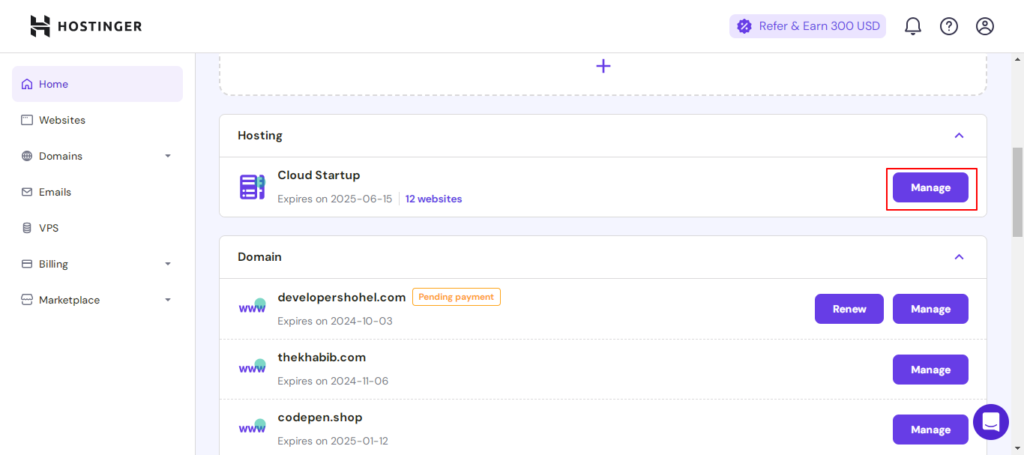
- Navigate to the hPanel (Hostinger’s custom control panel).
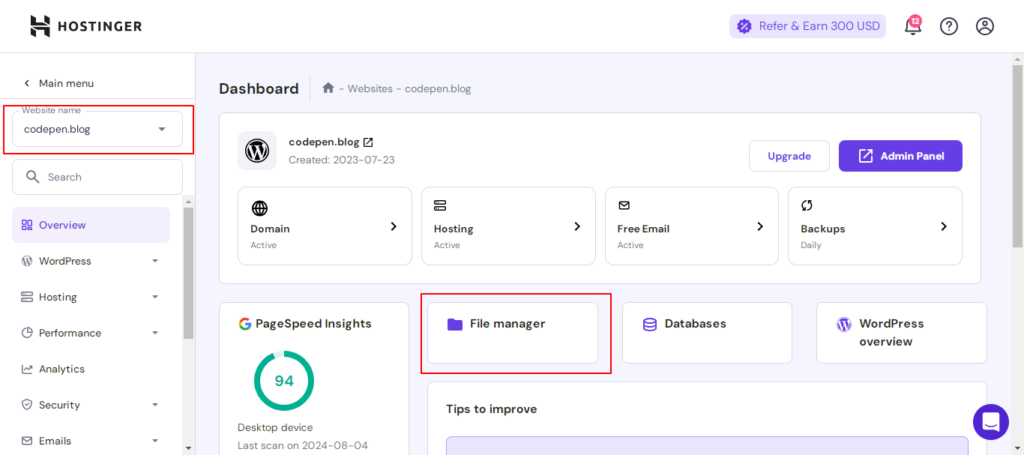
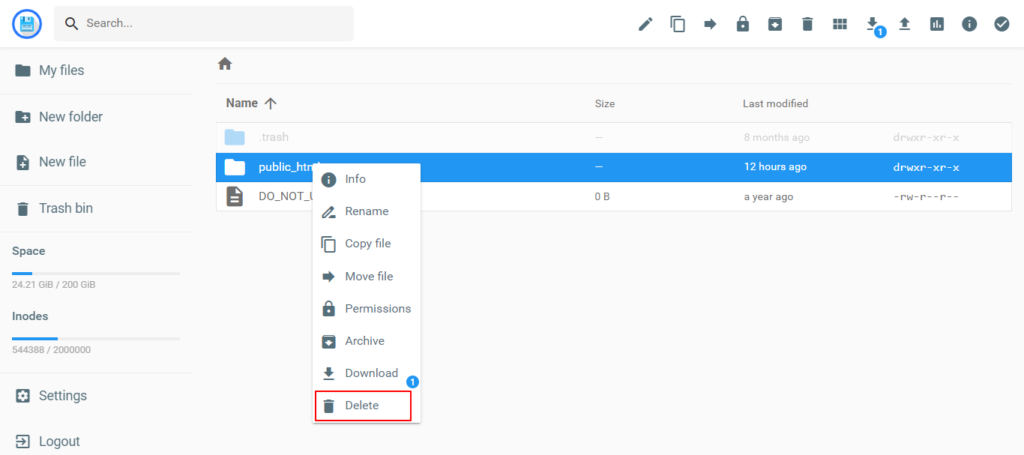
2. Delete Existing WordPress Files
- Go to File Manager under the Files section in hPanel.
- Open the directory where your WordPress site is installed (usually
public_html). - Delete the existing WordPress files if necessary (only do this if you are sure you want to fully restore from the backup).
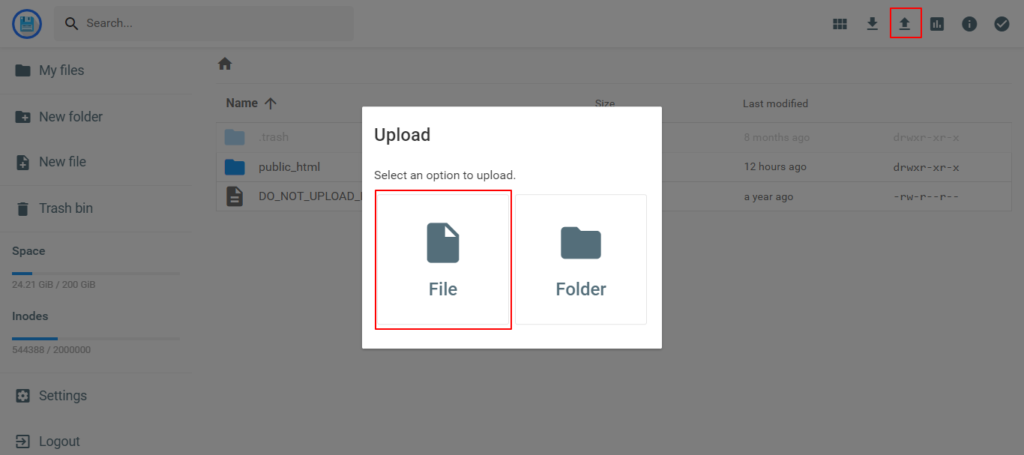
3. Upload WordPress Backup Files
- In File Manager, go to the directory where WordPress was installed (usually
public_html). - Click on Upload Files and upload your backup files (either as a .zip file or individual files).
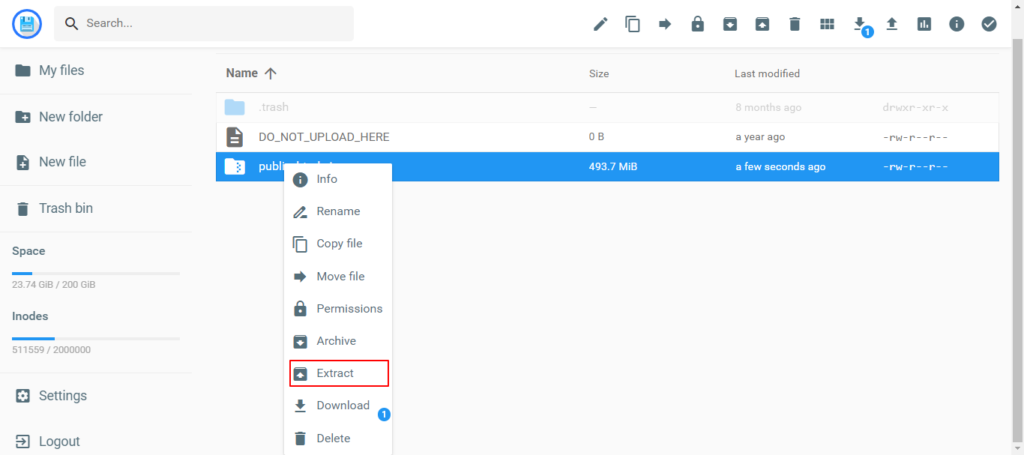
- If you uploaded a .zip file, right-click the file and select Extract to unpack the contents.
4. Restore the Database
- If your backup includes a database file (usually a
.sqlfile), you will need to restore it as well. - Go back to your hPanel, find the Databases section, and open phpMyAdmin.
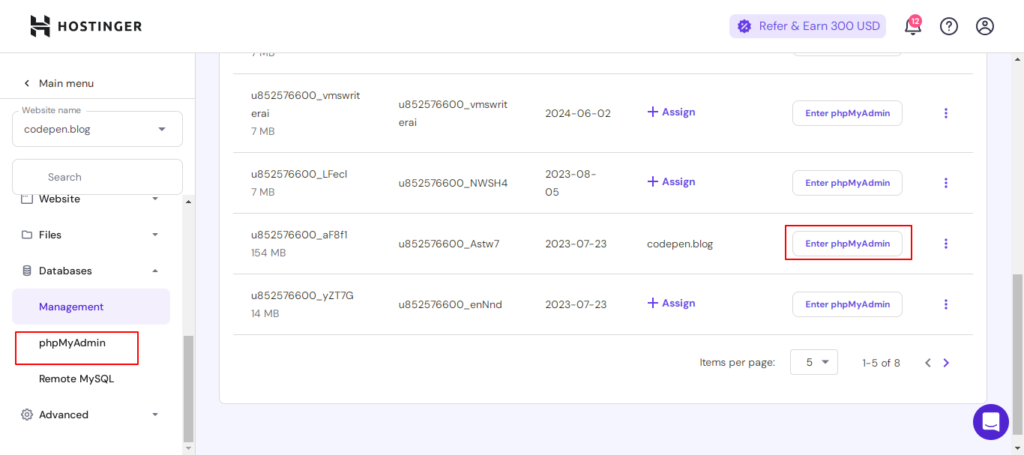
- In phpMyAdmin:
- Select your WordPress database.
- Click the Import tab.
- Choose the
.sqlfile from your backup and click Go to restore the database.

5. Update wp-config.php File (If Necessary)
- If your WordPress database credentials have changed (new database name, username, or password), you will need to update the
wp-config.phpfile with the new credentials. - In File Manager, locate
wp-config.phpin the root folder (usuallypublic_html). - Edit the file and update the following lines:
<?phpdefine('DB_NAME', 'your_database_name');
define('DB_USER', 'your_database_user');
define('DB_PASSWORD', 'your_database_password');
define('DB_HOST', 'localhost'); // or the appropriate database host
6. Test Your Restored Website
- Once the files and database have been restored, visit your WordPress site to check if it’s working as expected.
- If the site doesn’t load properly, clear your browser cache, and check for any errors or broken links.
7. Reconfigure Permalinks (Optional)
- Sometimes after a restore, your permalinks might break. To fix this:
- Log in to your WordPress admin panel.
- Go to Settings > Permalinks and simply click Save Changes (without making any changes). This will regenerate the
.htaccessfile.
By following these steps, you should be able to successfully restore your WordPress site from a backup using Hostinger’s File Manager.
Conclusion
In conclusion, safeguarding your WordPress site through regular backups is essential for protecting against cyber threats, human errors, and hardware failures, and ensuring compliance with legal obligations. Utilizing free backup plugins like UpdraftPlus simplifies the process, offering comprehensive and reliable backups that can be stored remotely. By following simple, user-friendly steps, you can ensure your site is secure, easily recoverable, and protected from potential disasters. A solid backup strategy gives you peace of mind, allowing you to focus on growing your online presence without fear of data loss or downtime.
